You’ve probably already tried to automate WordPress posts. Maybe you copy-pasted ChatGPT output directly into the editor, hit publish, and spent the next week worrying about a Google penalty. Or you built a Zapier zap that pushed posts to WordPress on a schedule — and then found three posts went live with the wrong title, or didn’t go live at all. Neither failure means automation is the problem. It means you were solving the wrong layer of it.
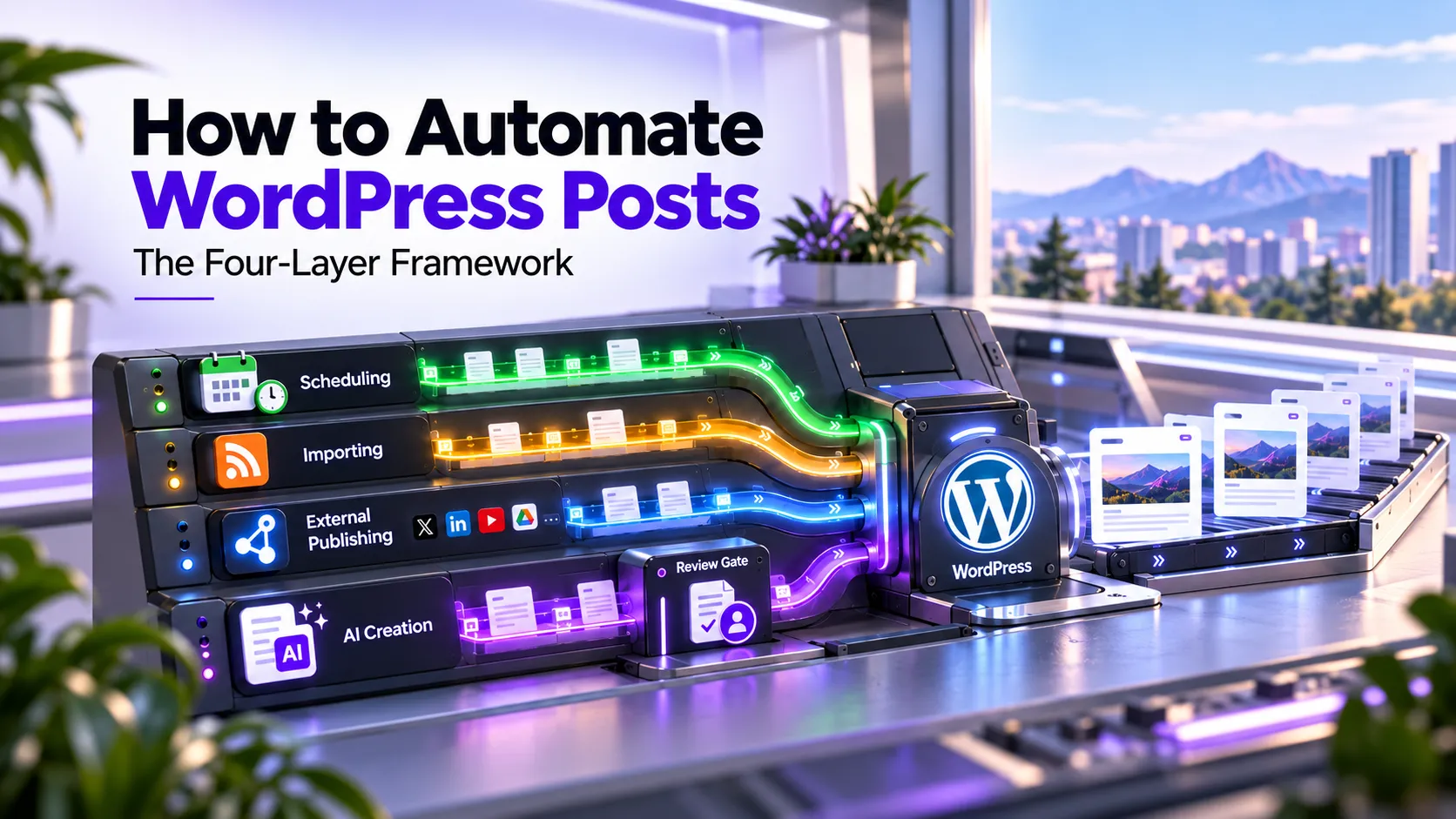
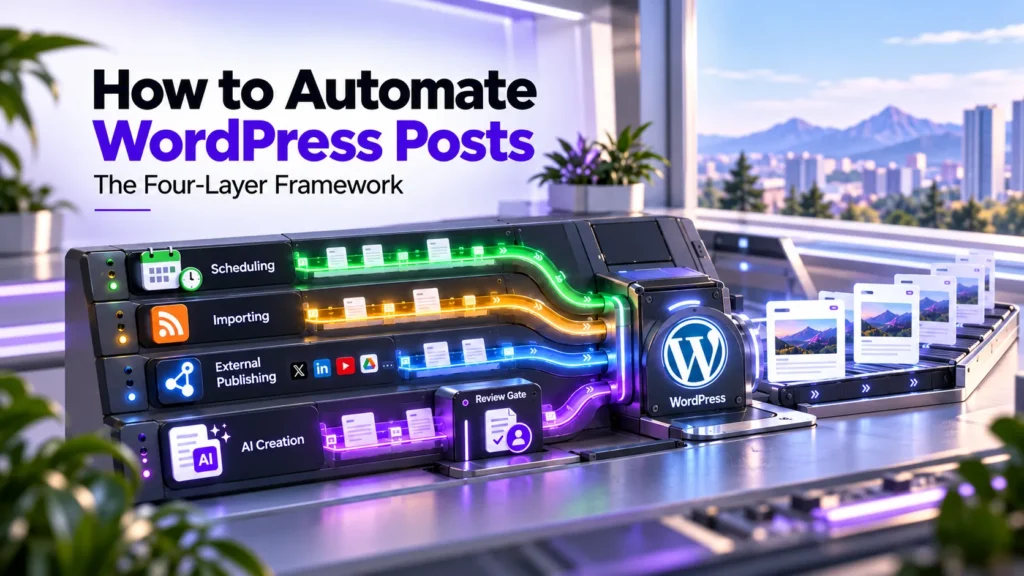
“Automate WordPress posts” sounds like a single task. It isn’t. It’s four fundamentally different jobs that happen to share the same destination: your WordPress database. Scheduling a pre-written post to go out at 9 a.m. Tuesday is a completely different operation from importing RSS content from a partner feed. Which is different again from triggering post creation from an external spreadsheet. Which is different again from generating a draft using an AI writing pipeline. Each layer has different tools, different risk profiles, and a different answer to the question “can this run unattended?” — and getting that answer wrong on Layer 4 in particular has real consequences for your site’s rankings.
The problem with most “automate WordPress” guides is that they treat all four jobs as interchangeable. A blogger who just wants reliable post scheduling ends up reading about REST API payloads. An agency operator who needs to push content from a project management tool into WordPress finds themselves wading through AI plugin reviews. The mismatch wastes time and often leads to setups more complicated than the actual problem demands.
This article maps all four automation layers — scheduling, importing, external publishing, and AI content creation — with a decision table that lets you identify your layer before reading anything else. Each layer gets a dedicated section covering the tools that work, the risks to manage, and whether it’s safe to run unattended. Two layers deserve extra attention: one because it’s technically misunderstood by almost everyone running a small WordPress site, and one because it intersects with Google’s content policies in a way that can quietly hurt your long-term traffic if you get it wrong.
If you already know your layer, use the headings to navigate directly. If you’re not sure which automation problem you actually have, start with the decision table.
Quick Guide to WordPress Post Automation
- Four distinct jobs: automating WordPress posts covers scheduling, importing/syndication, external publishing, and AI content creation — each requires different tools and carries a different level of risk.
- Scheduling is safe unattended — after one fix. WordPress's default WP-Cron is visitor-triggered, not time-triggered; posts on low-traffic sites miss their publish time silently unless you add a real server cron job.
- Importing and syndication is conditionally safe. Set imported content to draft, add a canonical tag pointing to the original source, and confirm you hold rights to republish before running it unattended.
- External publishing via Zapier, Make, or n8n is safe for human-approved content. Use Application Passwords for authentication; set status to publish only for copy that has already been reviewed by a human.
- AI content creation must never auto-publish. Google's scaled content abuse policy flags AI-generated content pushed live at scale without editorial review. The fix is mandatory: land as draft, review, then publish.
- The full REST API payload walkthrough for external publishing lives in How to Auto-Publish AI Content to WordPress — this article stays at the framework level.
The Four Layers of WordPress Post Automation (and Which One Is Yours)
Before touching a single plugin or Zapier zap, you need to know which automation job you’re actually trying to solve. The table below is the diagnostic. Find your row, then go directly to that layer’s section.
| Layer | What it automates | Example tools | Skill level | Safe on full autopilot? |
|---|---|---|---|---|
| 1 — Scheduling | Publishing pre-written posts at a future date/time within WordPress | Native WP scheduler, SchedulePress | Beginner | Yes — content is already human-approved; fix WP-Cron first |
| 2 — Importing / Syndication | Pulling external content (RSS, feeds) into WordPress as posts or drafts | WP RSS Aggregator, Feedzy, Zapier RSS template | Beginner–Intermediate | Conditional — safe as draft; risky as publish without copyright and canonical review |
| 3 — External Publishing | Triggering post creation in WordPress from an outside system | Zapier, Make, n8n, WordPress REST API | Intermediate | Yes — for human-written content pushed via an approved workflow |
| 4 — AI Creation | Generating post drafts using AI inside or outside WordPress | AI writing plugins, multi-agent pipelines (e.g., Contentosapp Studio) | Beginner–Intermediate | No — must land as draft; human review gate required before publish |
Readers who only need scheduling can stop at Layer 1. If you’re running a multi-site publishing operation where content gets approved in a spreadsheet before it ever touches WordPress, you want Layer 3. If you’re using AI to draft posts that a human then edits and approves, you need Layer 4 — and the review-gate rules that come with it. Don’t build all four layers at once. Start with the one that solves your actual bottleneck today.
Layer 1 — Scheduling WordPress Posts (and the Missed-Schedule Problem)
Scheduling is the simplest automation layer: you write a post, set a future date and time in the WordPress block editor, and WordPress publishes it automatically. No third-party tools required. For teams using an editorial calendar, plugins like SchedulePress add a visual drag-and-drop interface on top of the native scheduler — useful when you’re managing dozens of posts across a content pipeline and want to see gaps at a glance.
But here’s what almost nobody explains: the WordPress scheduler is not a real scheduler.
According to the WordPress Developer Handbook, WP-Cron — the system WordPress uses to handle all time-based tasks, including scheduled posts — “does not run constantly as the system cron does; it is only triggered on page load.” That sentence has a real-world implication that catches operators off guard. If you schedule a post for 9 a.m. and your site receives no visitor traffic until noon, that post does not go live at 9 a.m. It goes live when the next page load happens to trigger WP-Cron’s queue check. On a low-traffic site, that delay could be hours. The handbook is direct about this: “Scheduling errors could occur if you schedule a task for 2:00PM and no page loads occur until 5:00PM.”
The fix is a two-step conceptual change, not a complex development task. First, you disable WP-Cron’s visitor-triggered behavior by adding define('DISABLE_WP_CRON', true) to your wp-config.php file — this stops WordPress from checking the task queue on every page load. Second, you create a real server-side cron job (available through any cPanel or Plesk hosting panel under “Cron Jobs”) that calls WordPress’s wp-cron.php file on a fixed interval — every minute is the standard recommendation. With that in place, scheduled posts fire at the time you set, regardless of whether any visitors are on the site. It takes about ten minutes to configure and eliminates the missed-schedule problem permanently.
Layer 2 — Importing and Syndicating Content Into WordPress
This layer is about pulling external content — RSS feeds, Atom feeds, custom API sources — into WordPress, either as drafts you edit before publishing or as posts that go live automatically. WP RSS Aggregator and Feedzy are the two most-used plugins for this pattern. Zapier’s WordPress integration also provides a native “Post RSS feed items to WordPress” Zap template, which means you can set this up without installing any additional WordPress plugin if you’re already using Zapier for other workflows.
Two risks come with Layer 2, and you need to address both before running it on autopilot. The first is copyright. RSS feeds are copyrighted content. Importing and republishing full-text feed items without a written syndication agreement with the original publisher is copyright infringement, regardless of whether you attribute the source. This is a legal exposure, not just an SEO question — and “I linked back to them” is not a defense. The safe use cases for Layer 2 are: content from your own secondary sites, licensed content with explicit republication rights, or feeds you control. The second risk is duplicate content in the index. Google doesn’t apply a formal penalty for duplicate content, but the canonical version of a page — the original — will typically outrank your imported copy, and your version may be filtered from search results entirely. The fix is to set rel="canonical" pointing to the original source URL on every imported post.
The practical guardrail is simple: always set imported posts to draft status by default. Review them before publishing, confirm you have redistribution rights, check that the canonical tag is in place, and then make the call on whether to publish or archive. If the source is your own content ecosystem — pulling from a staging site or a different property you own — this layer is low-friction and low-risk. If the source is any third-party feed, the review step is not optional.
Layer 3 — Publishing to WordPress from Outside (Zapier, Make, n8n, and the REST API)
Layer 3 is structurally different from scheduling. In Layer 1, the content already exists inside WordPress and you’re timing its release. In Layer 3, the content doesn’t exist in WordPress yet — it’s being pushed in from an external system. An approved row in a Google Sheet triggers a post creation. A completed task in Asana pushes a brief into WordPress as a draft. A newsletter email gets converted into a blog post. These are Layer 3 workflows.
Three no-code and low-code tools make this accessible without writing custom API code. Zapier’s WordPress integration connects to over 9,000 apps and includes native triggers and actions for WordPress posts — creating, updating, and finding existing posts. Make’s WordPress module requires installing the Make Connector plugin on your WordPress site, but once connected it gives you granular field mapping across posts, categories, comments, media, users, tags, and taxonomies. n8n’s WordPress node supports creating, updating, and retrieving posts and users natively — and it can function as an AI tool node within agent pipelines, which matters if you’re building more advanced multi-step workflows. n8n is self-hosted, which is relevant to agencies with data-sovereignty requirements or clients who can’t let content flow through third-party cloud infrastructure.
Authentication for all three tools works the same way: Application Passwords, a built-in WordPress feature since version 5.6, allow external tools to authenticate against the REST API without session cookies or plugins. Each automated user or service account gets its own Application Password — generated from the WordPress user profile screen — which you paste into Zapier, Make, or n8n’s credentials settings. Under the hood, every post creation runs through a POST request to /wp-json/wp/v2/posts. The status field determines whether the post goes live immediately (publish), gets queued for a future date (future, used alongside the date field), or lands in drafts for review (draft). For the full payload breakdown of how to configure these fields for automated publishing, How to Auto-Publish AI Content to WordPress covers that territory in detail — this section covers the framework.
Layer 4 — AI Content Creation: The One Layer That Should Never Run Unattended
Layers 1 through 3 automate the movement and timing of content you already control. Layer 4 is different: it automates the creation of content from scratch. That difference is exactly why the oversight requirement is different — and why getting this wrong has consequences that the other layers don’t.
Google’s official guidance on AI content draws a precise line. As stated in Google’s 2023 guidance on AI-generated content: “Using automation — including AI — to generate content with the primary purpose of manipulating ranking in search results is a violation of our spam policies.” The guidance goes on to clarify that not all AI content is spam — the violation is in the intent and the absence of editorial judgment, not in the method of production. Google’s scaled content abuse policy names this practice explicitly as a spam category: content generated at scale through automated processes to manipulate search systems. The critical word is “scale” paired with “without editorial judgment.” An AI-generated draft that a human reviews, fact-checks, adds original perspective to, and then publishes is not scaled content abuse. An AI pipeline that creates and publishes 40 posts per week with no human in the loop almost certainly is. For a deeper look at how Google’s policy has evolved and what the data shows about AI content rankings, Does Google Penalize AI Content? is worth reading before you build any AI content pipeline.
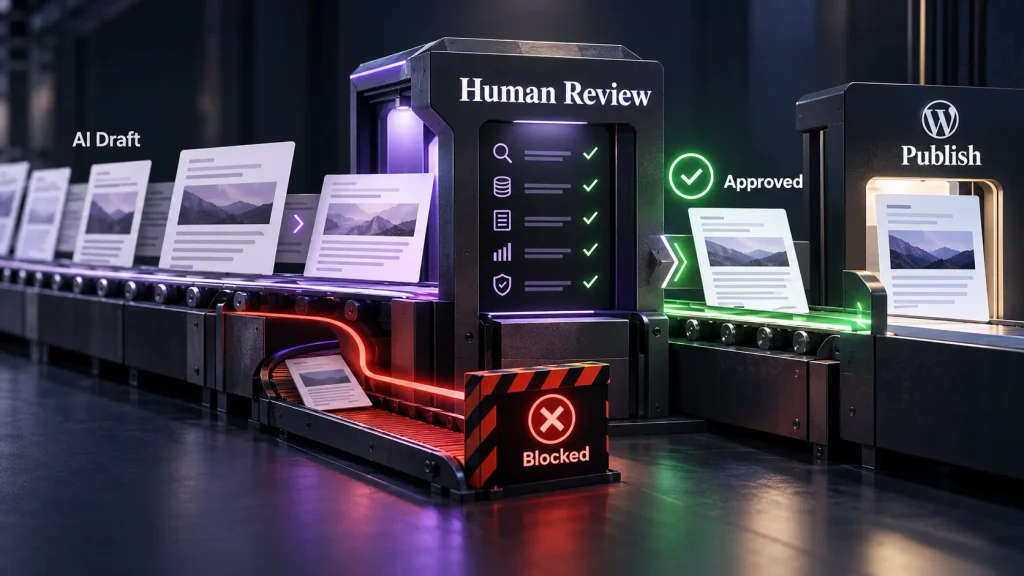
At the simpler end of the tool spectrum, single-step AI writing plugins generate text in your editor and leave the rest to you — you edit, approve, and publish manually. At the more complex end are multi-agent pipelines that handle research, briefing, drafting, image generation, and social copy in sequence. Contentosapp Studio is one example of this architecture: it runs as a multi-agent pipeline inside WordPress, supports your own AI API keys, and can be configured to save as draft or pause for manual review between pipeline stages, which is the correct implementation of the human-review-gate pattern. For a broader comparison of AI content plugins with different capability levels and workflow models, Best AI Content Plugins for WordPress in 2026 covers the tool landscape in detail.
Building a Review Gate Into Any Automation Pipeline
The human-review-gate concept sounds obvious in principle. Making it operational — something that actually runs as part of your workflow instead of a good intention you override when you’re in a rush — requires one concrete configuration choice and a clear definition of what “review” actually means.
The configuration is a single field. In any external publishing tool — Zapier, Make, n8n — the WordPress action includes a status field. The WordPress REST API schema accepts the following values: publish, future, draft, pending, and private. For any pipeline that touches AI-generated content, that field should be set to draft. Not publish. Not future. Draft. One field change is the difference between a compliant pipeline and a scaled-content-abuse risk. Scheduling (Layer 1) and external publishing of human-written content (Layer 3) don’t carry this requirement — those pipelines can write directly to publish because the editorial judgment happened before the automation ran. AI-generated content is the specific exception, and it’s not a judgment call.
The notification step is equally important. A draft that nobody knows exists doesn’t get reviewed. Every AI-content pipeline should trigger a notification to a specific human — email, Slack message, or an in-dashboard queue — the moment a new draft lands. That person’s job is defined: check factual accuracy, add any first-person experience signals, confirm the output matches the original brief, and verify the SEO fields (title tag, meta description, internal links) before hitting publish. If you want to build out that review process as a repeatable production system rather than an ad hoc check, WordPress Content Workflow: The End-to-End Production System for SEO Publishers maps the full process from brief to published post.
Choosing Your Automation Stack: Matching Layer to Tool Without Overbuilding
The most common mistake in WordPress automation isn’t using the wrong tool — it’s overbuilding for scale you don’t have yet. A fully automated n8n pipeline with webhook triggers, conditional branching, and error logging is the right setup for a 20-posts-per-month agency operation. It’s overkill for a solo blogger publishing five posts a month. Every additional component is a new failure point.
Three realistic scenarios map to three appropriately-sized stacks. If you’re a solo blogger publishing 4–8 posts per month with human-written content and your only problem is that posts sometimes miss their scheduled time, you need Layer 1 only: implement the WP-Cron fix described above, and optionally add SchedulePress if you want a visual editorial calendar. That’s it. No Zapier account required. If you’re running a small agency with 10–20 posts per month across two or three client sites and content gets approved in a shared spreadsheet before anyone touches WordPress, Layer 3 is your answer: set up a Zapier or Make workflow that reads from the approved sheet and creates posts via the WordPress REST API. Set status to publish — the content is already human-approved by the time it hits the automation. If you’re using AI to generate draft posts that a human then edits before publishing, you need a Layer 4 pipeline configured to land in draft, plus Layer 1 for the final scheduled publication once the edited post is approved. That combination gives you speed at the generation step and control at the publishing step.
The principle is: match the stack to the bottleneck. If your bottleneck is that posts go out at the wrong time, fix timing. If your bottleneck is that moving approved content from a spreadsheet into WordPress takes an hour per post, fix distribution. If your bottleneck is the time it takes to produce a first draft, fix creation — but don’t skip the review gate.
What to Track Once Your Automation Is Live
Automation without monitoring creates invisible failure. A missed scheduled post, a silently failed API call, or a growing backlog of AI drafts nobody is reviewing — all of these look like the automation is working until they don’t. Minimum viable tracking looks different for each layer.
For Layer 1, check the WordPress Posts dashboard weekly. Filter by “Scheduled” and look for any posts where the publish time has already passed. Those are WP-Cron failures — posts that should have gone live and didn’t. If you’ve implemented the server cron fix, verify it’s running by scheduling a test post five minutes out and confirming it publishes on time. This takes two minutes and catches misconfigured hosting panel cron jobs before they cost you a news cycle.
For Layer 3, log the HTTP response codes your external tool returns after each WordPress action. A 201 response confirms the post was created successfully. Anything in the 4xx range means an authentication or payload error — the post was not created, and the automation failed silently from the perspective of your editorial calendar. Zapier, Make, and n8n all maintain native execution history logs. Check them after the first ten runs, then spot-check weekly. Response codes don’t lie.
For Layer 4, track two numbers: what percentage of AI-generated drafts actually reach publish after human review, and how long they sit in draft before someone looks at them. If drafts are accumulating with a review lag of more than a week, the pipeline is generating faster than the team can review. That’s not an automation problem — it’s a capacity problem, and the right response is to reduce generation frequency, not to remove the review gate. A sustainable review cadence is as important as the pipeline itself.
Frequently Asked Questions
Why does WordPress miss scheduled posts even when I set them correctly?
WordPress’s scheduling system — WP-Cron — is visitor-triggered, not time-triggered. As documented in the WordPress Developer Handbook, it “does not run constantly as the system cron does; it is only triggered on page load.” If no visitor hits your site between when the post was scheduled and when it was supposed to publish, the task stays in the queue until the next page load fires it. The fix is to disable WP-Cron’s default behavior in wp-config.php and replace it with a real server-side cron job that runs on a fixed interval, regardless of traffic.
What is the difference between scheduling a WordPress post and auto-publishing one?
Scheduling (Layer 1) means the content already exists inside WordPress as a draft or scheduled post, and WordPress handles the timing of when it goes public. Auto-publishing (Layer 3) means content is created and sent to WordPress from an external system — a spreadsheet, a project management tool, or an automation platform like Zapier or Make — at the moment it’s triggered. Scheduling controls timing; external publishing controls creation and delivery. They often work together in a complete workflow.
Can Zapier, Make, or n8n publish directly to WordPress without a developer?
Yes. All three platforms offer native WordPress integrations that don’t require custom code. Zapier’s integration connects WordPress to over 9,000 apps; Make requires installing a dedicated connector plugin on your WordPress site; n8n’s WordPress node supports creating, updating, and retrieving posts natively. Authentication for all three uses WordPress Application Passwords — generated from the WordPress user profile screen — so no developer is needed to set up the credential. You will need to understand which fields to map (title, content, status, date) but that’s configuration, not code.
Is it safe to auto-publish AI-generated content to WordPress without reviewing it?
No. Google’s guidance on AI-generated content is explicit: using automation to generate content “with the primary purpose of manipulating ranking in search results is a violation of our spam policies.” The violation isn’t in using AI — it’s in publishing at scale without human editorial judgment. The correct technical implementation is to set the post status to draft in your automation pipeline. A human reviews the draft, makes editorial decisions, and publishes manually. Skipping that step is the specific behavior Google’s scaled content abuse policy targets.
How do I import RSS feed content into WordPress without triggering a duplicate-content issue?
The two-part answer: first, set your RSS importer to save content as draft rather than publish, so you have a review step before anything goes into the index. Second, add a rel="canonical" tag on every imported post pointing to the original source URL. This tells Google which version to treat as authoritative — the original — and prevents your imported copy from competing with it. Duplicate content itself doesn’t trigger a manual penalty from Google, but without a canonical, your imported page will typically be filtered from results and the original will rank instead.
Does automating WordPress posts risk a Google penalty?
It depends entirely on which layer you’re automating and how you’re doing it. Scheduling (Layer 1) and distributing human-approved content from external systems (Layer 3) carry no policy risk — the content is human-authored and editorially approved before it touches WordPress. Importing third-party content at scale without rights or review (Layer 2 misuse) and auto-publishing AI-generated content without human review (Layer 4 misuse) are the patterns that fall under Google’s scaled content abuse policy. The risk is in the absence of editorial judgment, not in the use of automation itself.
Do I need the REST API to automate WordPress posts, or can I use plugins?
You don’t need to write REST API code directly. Plugins like SchedulePress and WP RSS Aggregator handle Layers 1 and 2 entirely within WordPress. For Layer 3, Zapier, Make, and n8n use the REST API under the hood but expose it through visual workflow builders — no code required. The REST API becomes relevant if you’re building a custom integration that isn’t covered by an existing no-code connector, or if you need control over specific fields (like setting status: future with a precise date value) that a no-code tool doesn’t expose in its WordPress action. For most operators running 4–20 posts per month, plugins and no-code tools cover every layer without writing a single line.
The four-layer framework is the takeaway. Before you install another plugin or build another Zapier workflow, identify which automation job you’re actually solving: scheduling, importing, external publishing, or AI content creation. Scheduling and distribution can run unattended when the content is human-approved. AI content creation cannot — not because AI drafts are inherently low quality, but because publishing them without editorial review is precisely what Google’s scaled content abuse policy targets, and the draft status field exists specifically to enforce that gate at the system level. Build the right layer, configure it correctly, monitor it after launch. If you want to see what a multi-agent content pipeline with a built-in review gate looks like running inside WordPress, Contentosapp Studio is worth a look — it’s designed around that draft-first, review-then-publish pattern from the ground up.
References
External sources
- Cron – Plugin Handbook | Developer.WordPress.org — https://developer.wordpress.org/plugins/cron/
- WordPress Integrations | Connect Your Apps with Zapier — https://zapier.com/apps/wordpress/integrations
- WordPress – Apps Documentation — https://apps.make.com/wordpress
- WordPress | Nodes | n8n Docs — https://docs.n8n.io/integrations/builtin/app-nodes/n8n-nodes-base.wordpress
- Authentication – REST API Handbook | Developer.WordPress.org — https://developer.wordpress.org/rest-api/using-the-rest-api/authentication/
- Google Search’s guidance about AI-generated content | Google Search Central Blog | Google for Developers — https://developers.google.com/search/blog/2023/02/google-search-and-ai-content
- Spam Policies for Google Web Search | Google Search Central | Documentation | Google for Developers — https://developers.google.com/search/docs/essentials/spam-policies
- Posts – REST API Handbook | Developer.WordPress.org — https://developer.wordpress.org/rest-api/reference/posts/
Related content
- How to Auto-Publish AI Content to WordPress (Without Becoming a Spam Blog) — Contentosapp
- WordPress Content Workflow: The End-to-End Production System for SEO Publishers — Contentosapp
- Does Google Penalize AI Content? The Real Answer (With Data) in 2026 — Contentosapp
- Best AI Content Plugins for WordPress in 2026: Compared, Ranked, No Slop — Contentosapp