
You have the AI drafts. You’ve done the research, run the prompts, done the editing pass. Now you’re copy-pasting each post into WordPress, setting the slug, attaching the featured image, picking the category, writing the excerpt — and it’s eating 20 minutes per article. That’s the problem this article solves. If you want to know how to auto-publish AI content to WordPress, the answer is the REST API combined with a draft-first workflow. The REST API handles the plumbing: it moves your content from wherever your AI tool outputs it into WordPress automatically, with every field mapped correctly. The draft-first workflow is what keeps you out of trouble.
Here’s the distinction that matters. Automating the mechanical steps — formatting, field mapping, scheduling, category assignment — is smart operations. Automating the quality gate, meaning letting unreviewed AI output go directly live, is what gets sites flagged. Google doesn’t penalize AI content as such — it penalizes manipulation and low quality, which is exactly what skipping the review gate produces. That single-field decision in your API call is the line between a growing content operation and a site eating a manual action. This article covers the full technical setup: REST API credentials, the right publish status, scheduling logic, and how to stitch it into a pipeline where the only step that stays human is the final approval click.
- The core mechanism: WordPress’s REST API accepts POST requests with your content, slug, categories, and featured media — no copy-pasting required.
- The safety field: Always set “status”: “draft” in your API payload, not “publish”. This routes every post through your WordPress draft queue for human review before anything goes live.
- Authentication: Use Application Passwords — a dedicated WordPress user with Author role only, not your admin account. A leaked credential can then only create drafts, nothing more.
- Scheduling cadence: Use the “date” field with ISO 8601 format to stagger posts across days. Publishing 40 articles overnight is a scaled-content spam signal regardless of quality.
- No-code options: Make (formerly Integromat), n8n, and Python’s requests library all support this workflow without custom infrastructure.
- Google penalizes intent to manipulate rankings — not AI content or automation itself. A reviewed draft pipeline meets the quality bar Google’s systems are looking for.
The Status Field Is the Most Important Line in Your Automation
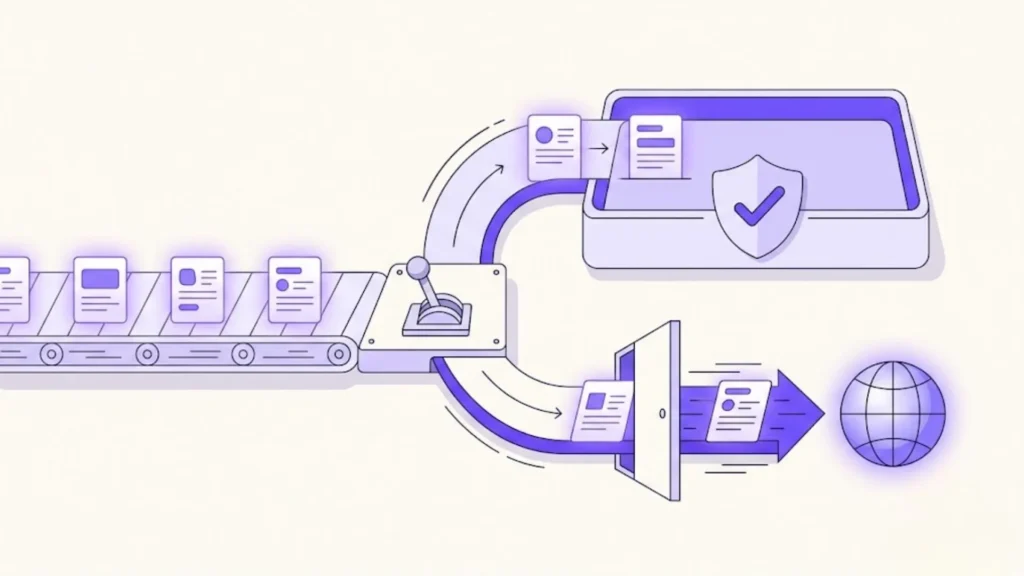
Most tutorials on auto-publishing to WordPress show you a JSON payload, point at the endpoint, and tell you to set "status": "publish". That one default turns your automation into a liability. According to the WordPress REST API Handbook, the status field accepts five values: publish, future, draft, pending, and private. Setting it to draft means the automation becomes a delivery mechanism only — the post lands in your WordPress queue, fully formatted with every field populated, and it waits. You review it. You hit publish. The automation did the boring part; you retained the only part that matters.
This is not a minor implementation detail. It is the architectural decision that defines whether your pipeline is a managed editorial tool or an unreviewed auto-blog. Change "draft" to "publish" in your payload and you’ve removed the human gate entirely. Every AI-generated post goes live the moment your script runs, with no review, no quality check, and no chance to catch a hallucinated stat or a formatting error before Google crawls it. The minimal viable payload for a safe setup includes title, content, status (set to draft), slug, categories, and featured_media — all documented fields in the Posts schema. Get those six fields mapped correctly and you’ve replaced 80% of the manual publishing workflow with a single API call.
Creating a Locked-Down WordPress API User for Your Automation
Every tutorial tells you to generate an Application Password. None of them tell you which account to generate it on — and that’s the mistake. If you create the Application Password on your admin account, a compromised credential gives an attacker full site access: plugin installation, user deletion, settings changes, everything. The correct setup is a dedicated WordPress user with the Author or Editor role only. That account can create and edit posts. It cannot touch anything else. A leaked key from that account has a contained blast radius — draft posts at most.
Application Passwords are the official WordPress authentication mechanism for REST API calls, introduced in WordPress 5.6 and now the production standard. To set this up: create a new WordPress user, assign the Author role, log in as that user, navigate to Users → Profile, scroll to the Application Passwords section, and generate a new password named something like “AI Publisher.” Store the credential immediately — it’s shown only once. From that point, every API call from your automation uses HTTP Basic Auth with the format Authorization: Basic base64(username:app_password). One additional advantage that competitors never mention: Application Passwords generate a read-only audit trail. The schema fields last_used (GMT datetime) and last_ip (IP address) let you verify when and where the credential was last used — something standard username/password authentication cannot provide. That audit visibility alone makes Application Passwords the security-superior choice for any automation pipeline, not just the “official” one.
Scheduling and Cadence: The Part Everyone Skips
Here’s a risk that almost no auto-publishing guide addresses. Even if every post is reviewed, well-edited, and genuinely helpful, publishing 50 articles in 24 hours through an automated pipeline can still look identical to a spam operation to Google’s systems. Google’s spam policies define spam as techniques used to manipulate Search systems — and scaled-content behavior is precisely the pattern SpamBrain is trained to detect. Quality is necessary but not sufficient. Cadence is part of the signal.
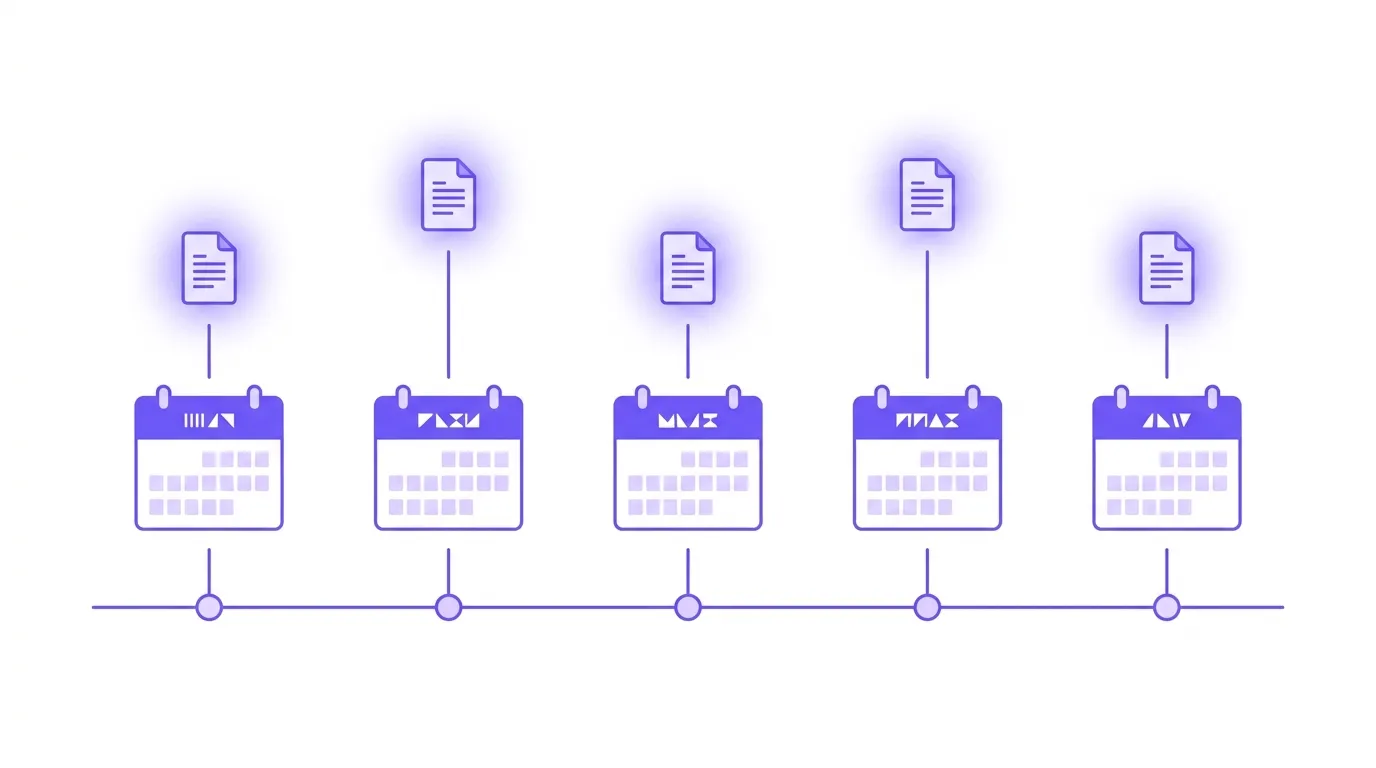
The fix is one extra field in your API payload: "date". When used alongside "status": "future", this field schedules the post for a specific future datetime in ISO 8601 format — for example, "2025-09-15T09:00:00". In your publishing script, calculate the date for each post in the queue by incrementing by one day per article. One post per day is the conservative, safe-growth cadence for a solo niche site. Two per day is workable if your site already has traffic history. More than that on a young domain without established authority is the publishing equivalent of waving a red flag. A basic loop in Python or a scheduler node in Make or n8n can stagger an entire backlog of reviewed drafts across weeks — automatically — without you touching each one individually. Just remember what happens to all those posts once they’re live: published at volume with no linking plan, they pile up as orphans. Building a real-URL internal linking system into the pipeline keeps each new post connected to the cluster instead of stranded.
Connecting the Workflow: From AI Draft to WordPress Without Copy-Pasting
The full pipeline has five stages, and only one of them should involve you sitting at a keyboard. Stage one: your AI tool generates the draft based on your brief. Stage two: your script (or no-code automation) calls the WordPress REST API with the reviewed draft, setting status to draft and date to its scheduled slot. Stage three: the post appears in your WordPress draft queue, fully formatted — title, content, slug, excerpt, featured media ID, categories all pre-populated.
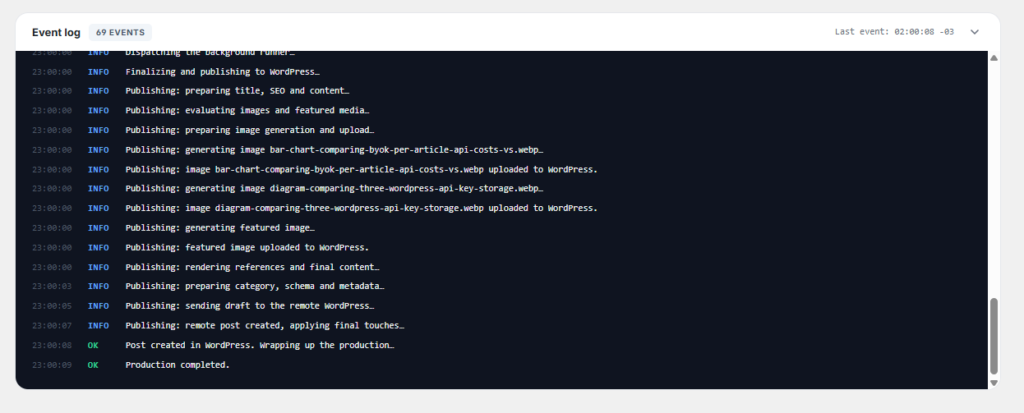
Stage four: you open the draft, read it, make any edits. Stage five: you click “Schedule” or “Publish.” That last click stays human. Everything else is automated. For the content generation layer that happens before Stage two — prompt structure, research integration, E-E-A-T signals — the complete AI writing workflow at Contentosapp covers that in full. This satellite is about the deployment layer only.
For the automation script itself, you don’t need custom infrastructure. Three tools handle this without writing a web server from scratch. Make (formerly Integromat) has a native WordPress module that maps fields visually and triggers on a schedule or webhook. n8n has a WordPress node that does the same thing in a self-hosted setup. If you prefer code, Python’s requests library handles the entire API call in under 20 lines — authenticate with Basic Auth, POST to https://yoursite.com/wp-json/wp/v2/posts, pass your JSON payload. All three approaches support the draft-first pattern natively. For the editing step before you trigger the API call, a sentence-level review pass is what separates rank-ready content from AI slop — it’s worth building that step into the workflow explicitly, not treating it as optional. And if you’re worried about whether the automation itself creates Google risk, Google’s own guidance is unambiguous: “Our focus on the quality of content, rather than how content is produced, is a useful guide.” The spam trigger is intent to manipulate rankings — not the use of AI or REST APIs.
Frequently Asked Questions
Does auto-publishing AI content to WordPress violate Google’s guidelines?
Not if the content is reviewed before it goes live. Google’s official guidance states that “using automation — including AI — to generate content with the primary purpose of manipulating ranking in search results is a violation of our spam policies.” The operative phrase is “primary purpose of manipulating ranking.” A reviewed, helpful article published via the REST API is not categorically different from a reviewed article published manually. Google’s SpamBrain targets manipulation intent and quality signals, not the publishing mechanism you used.
What is an Application Password in WordPress and why do I need one?
An Application Password is a WordPress-native credential system for authenticating REST API requests from external applications. It generates a unique UUID-based token that you use in the Authorization header of every API call. Standard login passwords don’t work for REST API authentication in modern WordPress setups. The official Application Passwords documentation shows the full schema, including the audit fields last_used and last_ip — which give you visibility into when and where the credential was used. Generate it on a dedicated Author-role account, not your admin account.
Can I auto-publish directly to “published” status, or does it have to be “draft”?
Technically, the WordPress REST API supports setting status to publish directly. Nothing in the API prevents it. But doing so means unreviewed AI content goes live the moment your script runs. The draft status is the architectural choice that keeps the human review gate intact. If you want a reviewed post to go live later, set status to future with a date field — WordPress then publishes it automatically at that datetime, with no further gate. So only switch a draft to future after you’ve actually approved it: draft is the review gate; future is for scheduling content you’ve already cleared.
How many AI posts can I publish per day without triggering spam signals?
There’s no published threshold from Google, but the principle is clear: scaled content behavior is explicitly flagged in Google’s spam policies as a manipulation technique. For a solo niche site under 12 months old, one post per day is the conservative cadence. Two per day is workable on a site with established traffic and link history. The risk isn’t the number per se — it’s the combination of rapid volume, thin content, and no editorial fingerprint. If every post is reviewed and genuinely helpful, lower cadence is still the safer operational choice.
What tools can connect an AI writing tool to WordPress without coding?
Make (formerly Integromat) has a native WordPress module that handles REST API calls visually, no code required. n8n offers a WordPress node in its self-hosted automation environment — similar logic, more control. For those comfortable with a small amount of code, Python’s requests library makes the API call in under 20 lines. All three support draft-first workflows, field mapping (title, content, slug, categories), and scheduled publishing via the date field. Note: XML-RPC is deprecated in modern WordPress — avoid any workflow that relies on it.
Will auto-published posts have the correct SEO metadata (title tag, meta description, slug)?
The slug maps directly to the REST API’s slug field, so yes — if your script passes the correct slug, WordPress sets it on creation. The excerpt field functions as a meta description fallback for themes and most SEO plugins. For SEO plugins like Yoast or Rank Math, you’ll need their specific REST API fields (typically in the meta object) to set the Yoast/Rank Math title and description explicitly. The core post fields — title, content, slug, excerpt — map cleanly out of the box. Plugin-specific meta fields require a one-time check of that plugin’s REST API extension documentation.
Conclusion
The entire auto-publish setup reduces to three decisions: what field you set for status (always draft until reviewed), which WordPress account holds the Application Password (a dedicated Author-role user, never admin), and how you stagger the date field across your publishing queue (one post per day as the safe default). Get those three right and the automation handles all the mechanical friction — formatting, field mapping, featured media ID, category assignment — while you keep the only decision that matters: whether the content is actually good enough to send live. The review gate isn’t a concession to caution. It’s the operational detail that separates a site that compounds in authority from one Google’s systems eventually tune out.
References
External sources
- Posts – REST API Handbook | Developer.WordPress.org — https://developer.wordpress.org/rest-api/reference/posts/
- Application Passwords – REST API Handbook | Developer.WordPress.org — https://developer.wordpress.org/rest-api/reference/application-passwords/
- Spam Policies for Google Web Search | Google Search Central | Documentation | Google for Developers — https://developers.google.com/search/docs/essentials/spam-policies
- Google Search’s guidance about AI-generated content | Google Search Central Blog | Google for Developers — https://developers.google.com/search/blog/2023/02/google-search-and-ai-content