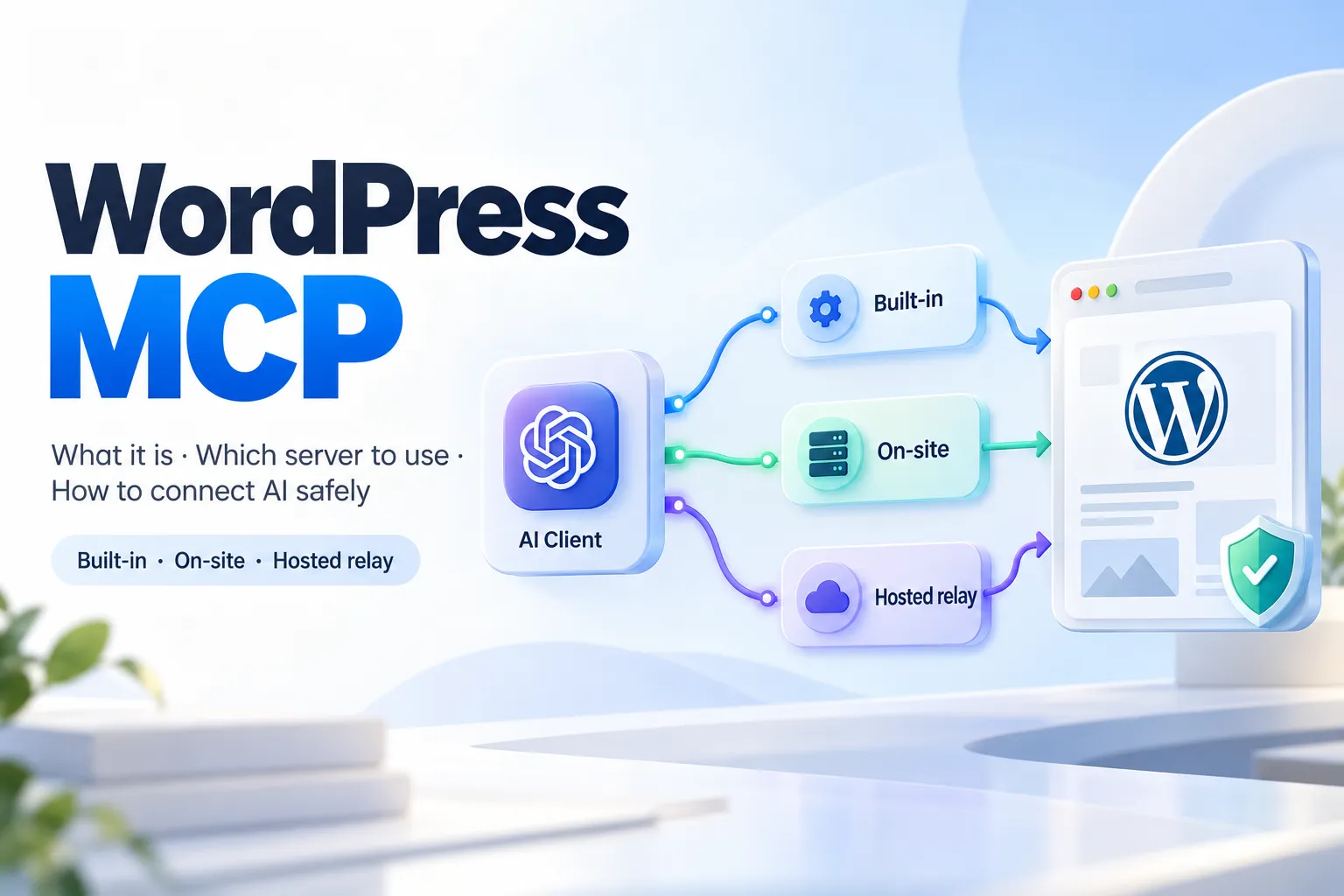
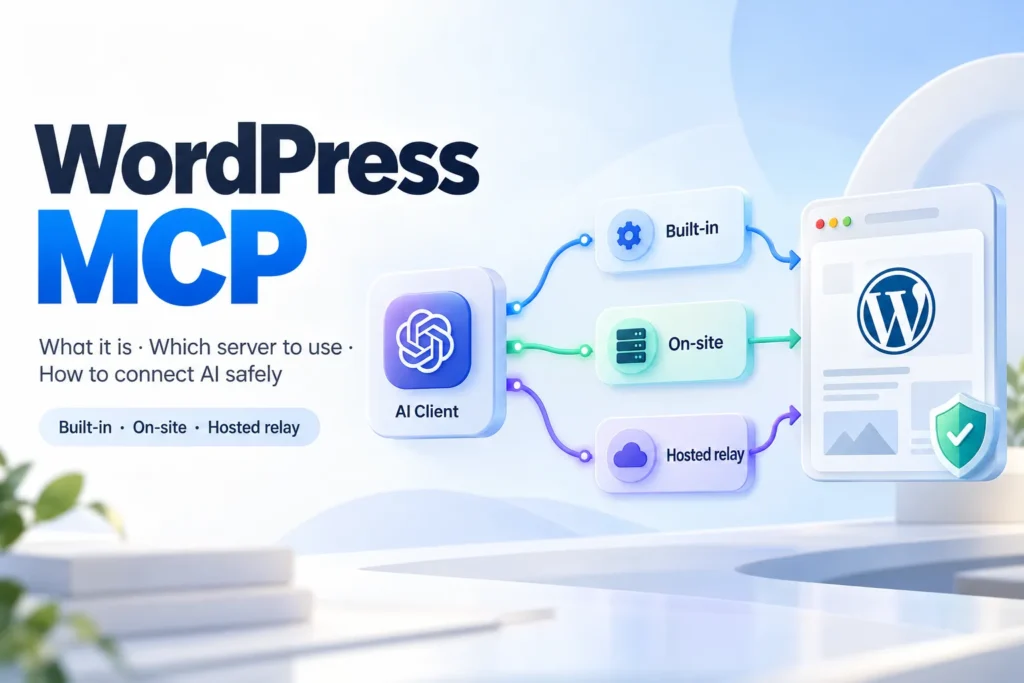
WordPress MCP means connecting an AI app such as Claude, ChatGPT, Cursor or Claude Code to your WordPress site through the Model Context Protocol, so the AI can read and manage the site within the permissions you grant. As of October 19, 2026 there are three ways to do it: WordPress.com’s built-in MCP, a server that runs on your own site (the official MCP Adapter, or a plugin such as Easy MCP AI, AI Engine or Royal MCP), or a hosted relay such as WPVibe.
Search for how to set it up and you’ll find a mix of an archived plugin, an official developer package and half a dozen plugins that each describe a different trust model. The protocol itself is simple. The hard part is choosing among those three architectures, then deciding how much access the AI actually needs to read your site, draft a post or check a WooCommerce order.
This guide is a decision guide, not a ranking. No option here is called best, because the right one depends on where your site lives and who you are willing to put in the path of your credentials. Versions and install counts are dated as of October 19, 2026, and plugins change quickly, so check each listing before you install anything.
You will get four things, in order: what MCP is and what changed in 2026, a comparison of the six options plus the WooCommerce note, setup steps by site type, and a security section that ends in a checklist you can reuse. A short final section explains where MCP stops and a content pipeline starts, because people regularly confuse the two.
Two topics are out of scope. Writing your own abilities or MCP server in code is developer work. And “WordPress calling AI,” where your site uses a provider key to generate text, is a different setup, covered in the Claude and ChatGPT guides linked later.
What WordPress MCP is, and what changed in 2026
MCP, server and client in plain words
MCP stands for Model Context Protocol. The official MCP site describes it as an open-source standard for connecting AI applications to external systems, and compares it to a USB-C port for AI applications. Just as USB-C gives you one standard way to plug in different devices, MCP gives AI apps one standard way to reach files, databases, tools and workflows. Claude, ChatGPT, Visual Studio Code and Cursor are among the clients the site lists as supporting it.
Two terms are enough to follow everything else in this guide. The client is the AI app you talk to: Claude, ChatGPT, Cursor or Claude Code. The server is the thing that exposes what can be done: in your case, your WordPress site, or a service sitting in front of it.
When you say “update the meta descriptions on these five posts,” the client decides which tool to call and the server carries it out under whatever permissions you granted. That division matters later, because every safety decision in this guide is about what the server is willing to do on the client’s behalf.
The official path: Abilities API, MCP Adapter, MCP tools
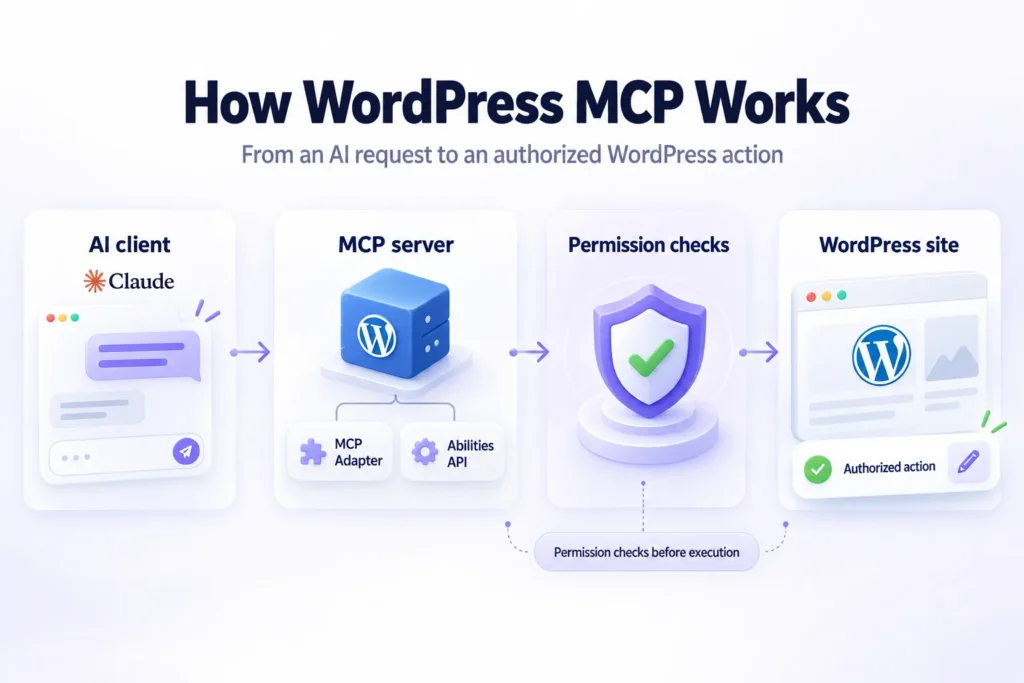
The official route has three layers, and it helps to see them in order. WordPress 6.9 introduced the Abilities API, which, according to the Make WordPress Core dev note, lets plugins, themes and core register their capabilities in a standardized, machine-readable format. An ability is a self-contained unit of functionality with defined inputs, outputs, permissions and execution logic. Think of it as a labeled button the site can offer to software.
The MCP Adapter is the next layer. Per its WordPress.org listing, it bridges the Abilities API with the Model Context Protocol, converting abilities into MCP tools, resources and prompts, with HTTP and STDIO transports and granular permission checks. As of October 19, 2026, that listing shows version 0.7.1 (released October 16, 2026), more than 50,000 active installations and a requirement of WordPress 6.9.
Here is the part most guides skip. The Adapter is the server and transport layer, and the listing says it does not provide any AI features itself. What it exposes comes from abilities registered by core or by other plugins. It is a building block for developers and plugin authors, not a ready-made library of site actions.
Abilities are also private by default. According to the listing, a developer must mark an ability as public (meta.public) before the default server’s three meta-tools, discover-abilities, get-ability-info and execute-ability, can reach it. For a non-developer, this default is good news: installing the Adapter alone does not hand an AI the keys to your site.
Why older guides send you to the wrong plugin
Before the Adapter existed, Automattic published its own plugin, wordpress-mcp, and many tutorials still point to it. Automattic archived that repository on September 17, 2026, and it is now read-only. Its page calls it deprecated, says it is not the recommended way to add MCP support to WordPress, and states “Do not use it for new installations.” It points to the MCP Adapter and to the Abilities API, which moved into core with WordPress 6.9. The repository’s last release was v0.2.5, dated July 24, 2025.
The practical rule is short. If a guide tells you to install Automattic’s wordpress-mcp plugin, treat the whole guide as outdated and check its other advice twice. Old tutorials and AI-generated summaries keep recommending it because they were written before the change, not because it is still the right choice.
WordPress MCP servers and plugins compared
The table below compares the options this guide covers. Every cell comes from the vendor listing or official page, so treat tool counts, speed claims and security claims as statements from the listing, not as independent test results. Where a source did not state something, the cell says “the listing does not say.” Versions and installs are as of October 19, 2026.
| Option & architecture | How AI connects | Authentication & access | Who it fits |
|---|---|---|---|
| WordPress.com built-in MCP Built-in service | WordPress.com MCP endpoint The AI client connects to WordPress.com’s managed MCP endpoint. The service is part of the WordPress.com platform. | OAuth 2.1 Browser-based authorization through your WordPress.com account. Tool permissions depend on the connected user and the enabled MCP tool groups. | Eligible WordPress.com users Available on paid WordPress.com plans and free sites during their first 30 days. Also supports eligible Jetpack-connected self-hosted sites with Jetpack AI or Jetpack Complete. |
| MCP Adapter Official building block |
HTTP or STDIO
STDIO connections use WP-CLI.
HTTP endpoint:
/wp-json/mcp/mcp-adapter-default-server
|
Granular permission checks The Adapter exposes abilities registered through the WordPress Abilities API. Abilities remain private until explicitly exposed. The listing describes granular permission checks. | Developers & plugin authors Intended for building custom WordPress MCP integrations. The Adapter alone does not provide a ready-made collection of AI site actions. |
| WPVibe Hosted relay | Third-party hosted service The AI connects through WPVibe’s hosted infrastructure. The service relays tool calls to the WordPress REST API. | OAuth magic-link sign-in The hosted WPVibe service manages authentication, according to its listing. A third-party service sits between the client and the WordPress site. | Self-hosted site owners Suited to owners seeking a convenient connection without building a custom MCP server. Requires accepting a third-party relay in the connection path. |
| Easy MCP AI On-site MCP plugin | Direct site connection The MCP server runs on the WordPress site itself. AI clients connect directly to the site’s MCP URL. | OAuth 2.1 The user selects what the AI may read or change before approving access. The listing describes permission controls and audit logging. | Owners wanting direct control Designed for sites that want multiple integrations, audit logging and a connection that does not require a separate vendor account. |
| AI Engine On-site AI plugin with MCP | Plugin-hosted MCP server The MCP server is part of the broader AI Engine plugin. Paste the MCP URL into your AI client. | OAuth authorization Sign in to WordPress and approve the connection. | Sites needing more AI features Suited to publishers who also want chatbots and other AI capabilities from the same plugin. Check hosting compatibility, especially the PHP requirement. |
| Royal MCP On-site MCP plugin | MCP connector Add the plugin’s MCP server as a connector in the AI client. | OAuth 2.0 Uses OAuth 2.0 authentication, according to the plugin listing. | Plugin-heavy WordPress sites Particularly relevant to sites using WooCommerce, Elementor, Divi, ACF, Yoast and similar plugins. Integration coverage is based on the vendor’s listing. |
| WooCommerce MCP Developer preview | Through the MCP Adapter WooCommerce exposes functionality through the WordPress Abilities API and MCP Adapter. | WordPress user permissions The connection operates under the permissions of the authenticated WordPress user. Product and order operations require appropriate access. | WooCommerce developers Relevant to store owners and developers evaluating AI-assisted store operations. This remains a developer preview. APIs and integration details may change. |
Two notes on that table. First, the minimum versions come from each plugin’s WordPress.org listing, and AI Engine is the only one that also needs PHP 8.1, which some older hosting plans don’t run. Second, prices are left out on purpose. WPVibe and Easy MCP AI are described as free plugins; for the others, check the listing.
The WooCommerce row is not a separate server. It is native MCP support inside WooCommerce, and WooCommerce 11.3 removed the older endpoint that used REST API keys. More on that in the security section.
Three architectures, three trust trade-offs
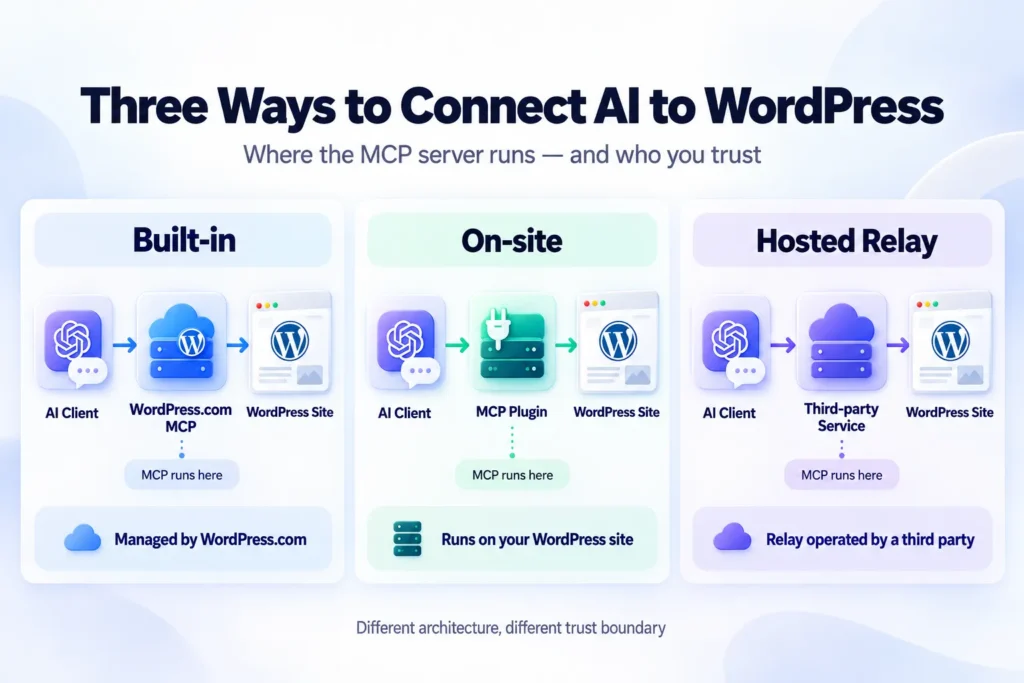
This is my editorial framing, not a vendor statement: the useful question is not “which plugin has the most features” but “who sits between my AI and my site.” The built-in option sits inside WordPress.com’s own account system, so you are already trusting that platform with your site. An on-site server runs PHP on your own site, so tool calls go straight from the AI client to your site.
A hosted relay adds a third party. WPVibe’s listing says its hosted service handles authentication, encrypts credentials with AES-256-GCM and relays your AI’s tool calls to the WordPress REST API. That is a convenience trade: setup is quick, and in exchange a service you do not control is in the path. The question to ask is whether you are comfortable with that service in the path, and the listing text reviewed here does not say anything about the service’s data retention or terms.
On the other side, Easy MCP AI’s listing says there is “no relay, no vendor account,” with the MCP server running as PHP on your own site and AI clients connecting to it directly. Neither design is automatically safer. An on-site server puts the security work on your site’s hardening and updates, while a relay puts part of it on the relay’s operator.
How to read vendor claims
Every listing in the table sells itself, and that is fair. Just keep the attribution straight. Easy MCP AI’s listing says “280+ MCP tools” and Royal MCP’s says “250+ tools”. Those two vendors count tools differently (Easy MCP AI splits its count into 130+ core tools, 90+ plugin integrations and 50+ SEO and analytics; Royal MCP into 109 core and 150 integration tools), and no source in this research compares them. Do not read the gap as a performance difference.
The same goes for WPVibe’s claim that connecting Claude takes about 30 seconds, and Royal MCP’s “nothing leaves your site.” Both are vendor statements. Royal MCP’s listing also calls itself the most complete WordPress MCP server, which is marketing language, not a finding.
One practical point: more tools mean more surface you have to restrict, not necessarily more value. If your job is editing posts, a plugin exposing hundreds of tools for analytics, security and caching gives you more switches to turn off. AI Engine’s listing takes a different route, bundling the MCP server with chatbots and content features, which makes sense only if you want those features too. Pick for the job you actually need done.
How to set up WordPress MCP, step by step, by site type
Your setup depends on where the site lives. The three procedures below cover a WordPress.com site, a self-hosted site using a plugin, and a developer working directly with the Adapter. If Claude is your client, the Claude for WordPress guide is the step-by-step companion to the connection part. Read the security section before you finish, because the defaults are broader than most people expect.
WordPress.com sites
Eligibility first. Per the WordPress.com support page, MCP access is available on all paid plans, works on a free site for the first 30 days after creation, and is also available on self-hosted sites connected through Jetpack with a Jetpack AI or Jetpack Complete plan.
- Open Preferences, then “AI and MCP” (my.wordpress.com/me/preferences/mcp).
- Choose “Enable MCP access.” This turns on both the Read and Write tool groups by default.
- Customize the tools and exclude individual sites if you want to narrow the scope.
- In your client (Claude, ChatGPT or another MCP client), add
https://public-api.wordpress.com/wpcom/v2/mcp/v1and complete the OAuth 2.1 browser authorization. The support page has setup guides for Claude, ChatGPT and other clients.
Do step 3 before step 4. Narrowing the tool groups before the first connection is easier than remembering to do it afterward.
Self-hosted sites with a WordPress MCP plugin
For a self-hosted site, a plugin is the practical route unless you are building on the Adapter yourself. The steps below follow the flows the listings describe; each plugin’s own screen has the final word, and WPVibe uses a hosted connection, so its screens will differ.
- Check the listing for current version and compatibility, then install and activate the plugin you chose: Easy MCP AI, AI Engine, Royal MCP or WPVibe.
- Copy the MCP URL the plugin shows. With WPVibe, the listing says you first click to authorize in the plugin’s admin screen, then add its MCP server URL, because the connection runs through its hosted service.
- Add it as a connector in your client. For Claude, Easy MCP AI’s listing describes Settings, then Connectors, then add a connector, paste the URL and click Connect. For Claude Code, the same listing says to run the command shown on the plugin’s dashboard, then use /mcp to sign in. ChatGPT and Cursor have their own equivalents.
- Sign in to WordPress through OAuth and approve the access. Sign in as a dedicated user, not your administrator account. Easy MCP AI’s flow lets you choose what the AI may read or change before you approve; use that screen.
- Run a read-only test request first, such as asking for a list of your draft posts. Widen permissions only if the job needs it.
A read-only first request does two things. It confirms the connection works, and it shows you what the agent can see before you let it change anything.
Developers using the MCP Adapter
If you are building on the Adapter, the requirements are specific. It needs WordPress 6.9. Clients connect over STDIO through WP-CLI or over HTTP at /wp-json/mcp/mcp-adapter-default-server. Abilities stay private until marked public with meta.public, and only then can the default server’s three meta-tools (discover-abilities, get-ability-info and execute-ability) reach them.
State this to your client or your team plainly: the Adapter does not ship ready-made site actions. Without abilities from core or from a plugin that registers them, you have a working server with nothing useful to call. The official listing has the install paths, including the WP-CLI command, and the current instructions.
Security: what an AI agent can do once connected
Permissions, defaults and confirmation
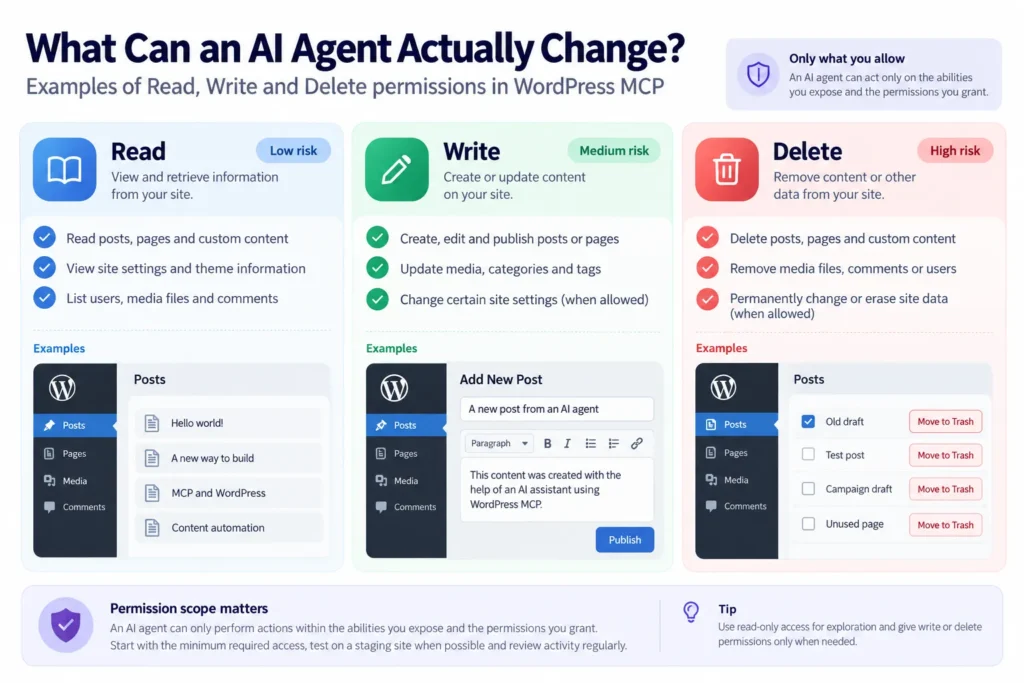
An AI agent connected through MCP is not a read-only viewer by default. On WordPress.com, enabling MCP access turns on both Read and Write tool groups. That is a convenient default and a wide one, so narrow it if you do not need writing.
Two limits work in your favor. MCP respects user role permissions, so the agent can only do what the role you connect as can do. And according to the support page, write operations, including delete, ask for confirmation before executing. The agent proposes, you approve.
The role table below summarizes what the support page says about roles. The last column is my editorial reading of what that means when you choose which user to connect.
| Role | What the support page says | Practical reading (editorial) |
|---|---|---|
| Administrator | Full access to all MCP tools | Widest blast radius; avoid for everyday agent work |
| Editor | Can manage content and comments, cannot change site settings or plugins | A reasonable ceiling for content jobs |
| Author and Contributor | More limited access | Narrower still; check the MCP tool reference for exact tools |
The same logic holds on self-hosted sites. Easy MCP AI’s listing, for example, says every tool call runs under WordPress permissions. The role you connect as is the first and cheapest limit you have.
What can be lost permanently
Here is the detail that matters most. On WordPress.com, deleted posts and pages can be recovered from trash for 30 days, while deleted media, categories and tags are permanent, per the same support page. Trash is a safety net for content, not for everything.
Consider an illustrative example (not a documented incident). You ask an agent to “clean up unused tags.” It finds 60, proposes deleting them and you approve the prompt without reading the list. Those tags cannot be recovered, and any archive pages or SEO settings that depended on them go with them. The confirmation prompt only protects you if you actually read it.
WooCommerce and personal data
WooCommerce includes native MCP support, but the developer docs describe it as a developer preview and warn that implementation details, APIs and integration patterns may change. The purpose-built abilities cover products (query, create, update, delete) and orders (query, update status, add notes), surfaced through the Abilities API and the MCP Adapter. Clients authenticate through the Adapter as a WordPress user, and every operation respects WooCommerce’s permission system.
Order and customer operations may expose personal data: names, email and physical addresses and payment details. The docs recommend connecting as a dedicated WordPress user with only the permissions needed. Also note that WooCommerce 11.3 removed the older MCP endpoint that used REST API keys. If a tutorial tells you to paste a WooCommerce REST key into an MCP client, it describes a setup that no longer exists in current versions.
On-site server versus hosted relay, and audit logs
Where credentials and calls travel is the architectural question from earlier, and it has a security side. With a hosted relay, WPVibe’s listing says the service encrypts credentials and relays tool calls. With an on-site server, such as Easy MCP AI, the listing says AI clients connect to your site directly. I am not claiming either is safer, because no independent security audit of any plugin appears in the sources reviewed.
Audit trails are worth a direct look. Easy MCP AI’s listing describes an Audit Log and Change History, per-token permissions and rate limits, and says the log records each call “when logging is on.” Those are vendor statements. For the other options, the listing text reviewed does not say whether audit logging exists, so check before you rely on it.
Least-privilege checklist
This checklist is editorial synthesis built on the documented behavior above. Use it as a starting point, not as vendor guidance.
MCP versus a content pipeline: which job each one does
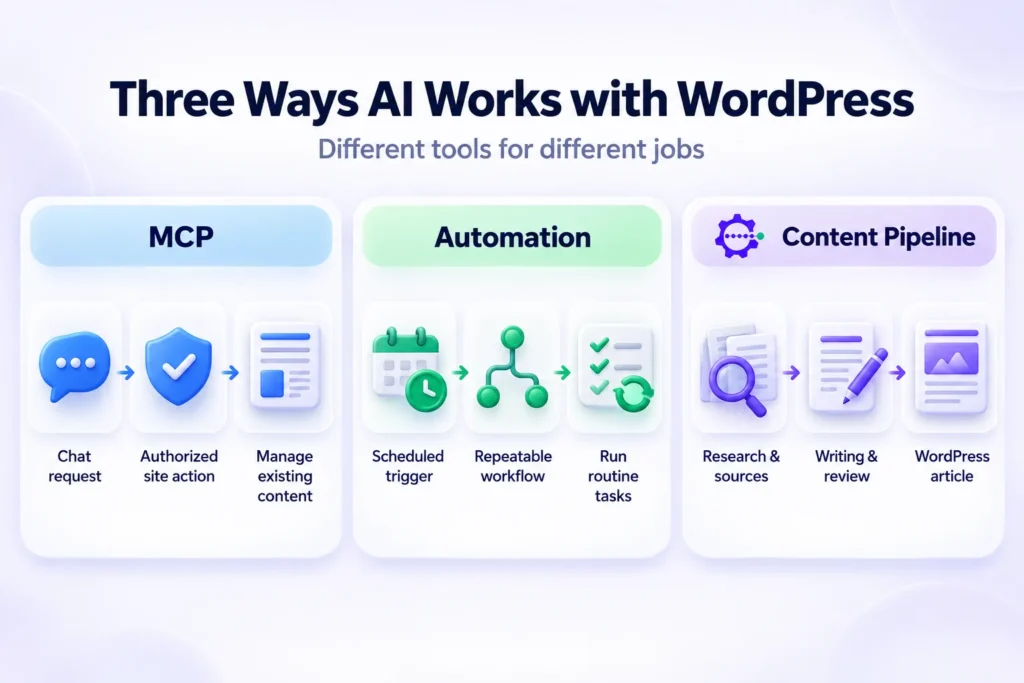
MCP, scheduled automation and a content pipeline are three tools for three jobs, and mixing them up is how people end up disappointed. MCP lets an agent operate your site through chat: “update the meta descriptions on these five posts,” “list the drafts older than 60 days,” “change this product’s status.” It is interactive, and you are in the loop approving actions.
A scheduled automation, such as a workflow built with the n8n WordPress node, fits repeatable triggers that run without you. A content pipeline fits a different job entirely: producing researched articles from scratch. Quality in that job, meaning helpful content with real E-E-A-T signals instead of generic AI filler, comes from research, sourcing and editorial review. It does not come from which connection protocol sits underneath.
Disclosure: Contentosapp Studio is made by the publisher of this site. It is not an MCP server and does not include one. Per its WordPress.org listing, it is a WordPress plugin that runs a seven-agent pipeline to research, write and review articles and prepare images and Schema.org markup. It then publishes to connected WordPress sites over the REST API with Application Passwords, as a draft or a published post. The listing says it runs on your own Anthropic, OpenAI or Google Gemini key with no plugin fee, or on the managed ContentOS Auto service, and that with your own key the provider bills you directly.
The decision rule is simple. Use MCP when you want to say something in chat and have the agent act on your existing site. Use a scheduled automation for repeatable triggers. Use a pipeline when the job is producing rank-ready articles that someone reviews before they go live. None of the three promises rankings.
Frequently Asked Questions
What is WordPress MCP?
WordPress MCP means connecting an AI app such as Claude, ChatGPT, Cursor or Claude Code to your WordPress site through the Model Context Protocol, an open standard for linking AI applications to external systems. Your site, or a service in front of it, acts as the server. The AI app acts as the client and can read or change content within the permissions you grant.
Is there an official WordPress MCP server?
The official package is the MCP Adapter, part of the AI Building Blocks for WordPress initiative. It is a server and transport layer for developers and plugin authors, not a ready-made site-management plugin. Automattic archived its original wordpress-mcp repository on September 17, 2026 and marks it deprecated. WordPress.com also offers its own built-in MCP endpoint for eligible sites.
Do I need a plugin to use MCP with WordPress?
Not on WordPress.com, where MCP is built in for eligible plans. On self-hosted sites, in practice yes: a plugin such as Easy MCP AI, AI Engine, Royal MCP or WPVibe gives you a ready connection. The alternative is building on the MCP Adapter with developer work and abilities registered by core or other plugins.
Is it safe to connect an AI agent to WordPress?
It depends on the permissions you grant. On WordPress.com, MCP respects user roles and asks for confirmation before write operations, but enabling access turns on Read and Write by default, and deleted media, categories and tags are permanent. Use a dedicated least-privilege user, test on staging and back up first. No setup is safe by default without those steps.
Does WooCommerce support MCP?
Yes, as a developer preview. WooCommerce docs list abilities for products (query, create, update, delete) and orders (query, update status, add notes), surfaced through the Abilities API and the MCP Adapter. Order and customer operations may expose personal data, so use a dedicated user with limited permissions. WooCommerce 11.3 removed the older REST-key endpoint.
Can ChatGPT connect to WordPress through MCP?
Yes. WordPress.com’s built-in MCP has a setup guide for ChatGPT, and the WPVibe, Easy MCP AI, AI Engine and Royal MCP listings all name ChatGPT as a supported client. Each plugin has its own connection screen. For the ChatGPT-specific picture, see the ChatGPT WordPress plugin guide.
Your next step
Pick the architecture before you pick the plugin: built-in if you are on WordPress.com, an on-site server if you want calls to go straight to your site, a hosted relay if you accept a third party in the path for faster setup. Then create a dedicated user with the minimum role, connect it to a staging copy and run a read-only request first. Re-check each listing’s version and install count before you install, because the figures above are dated October 19, 2026 and plugins change quickly. Which job do you actually want the agent to do, and what is the smallest set of permissions that covers it?
References
External sources
- What is the Model Context Protocol (MCP)? – Model Context Protocol — https://modelcontextprotocol.io/docs/getting-started/intro
- Abilities API in WordPress 6.9 – Make WordPress Core — https://make.wordpress.org/core/2025/11/10/abilities-api-in-wordpress-6-9/
- MCP Adapter – WordPress plugin | WordPress.org — https://wordpress.org/plugins/mcp-adapter/
- GitHub – Automattic/wordpress-mcp: WordPress MCP — This repository will be deprecated as stable releases of mcp-adapter become available.… — https://github.com/Automattic/wordpress-mcp
- WPVibe – MCP Server for WordPress, works with Claude, ChatGPT & other AI MCP agents – WordPress plugin | WordPress.org — https://wordpress.org/plugins/vibe-ai/
- Easy MCP AI – Connect Claude to WordPress: MCP Server for ChatGPT & AI Agents – WordPress plugin | WordPress.org — https://wordpress.org/plugins/easy-mcp-ai/
- Royal MCP – Secure AI Connector for Claude, ChatGPT & any LLM via MCP – WordPress plugin | WordPress.org — https://wordpress.org/plugins/royal-mcp/
- AI Engine – The Chatbot, AI Framework & MCP for WordPress – WordPress plugin | WordPress.org — https://wordpress.org/plugins/ai-engine/
- Enable WordPress.com MCP tool access for AI agents | WordPress.com Support — https://wordpress.com/support/mcp/
- Model Context Protocol (MCP) Integration | WooCommerce developer docs — https://developer.woocommerce.com/docs/features/mcp/
- Contentosapp Studio – AI Content Writer & SEO (BYOK) – WordPress plugin | WordPress.org — https://wordpress.org/plugins/contentosapp-studio/