
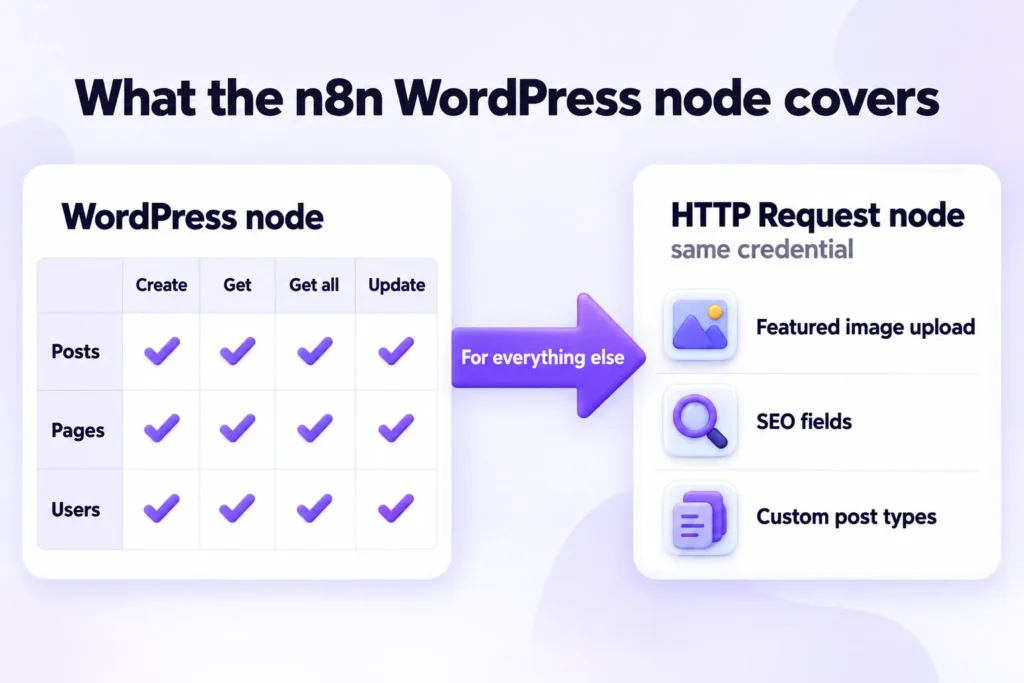
The n8n WordPress node creates, gets, gets all and updates posts, pages and users, and that is the full list. For posts it has no featured image field, no SEO or custom meta fields and no custom post types, and it can’t upload media at all. That’s why a first test post usually arrives with no featured image, an empty Rank Math panel and the whole article in one Classic block.
That isn’t a bug in your workflow. This guide builds the complete AI-to-WordPress workflow anyway, closing each gap with the HTTP Request node and the same credential you already created.
You’ll get the node’s real capability map, the credential setup for self-hosted sites (n8n’s own guide shows the WordPress.com path), a node-by-node build, copy-ready code for featured images and SEO fields, a draft-first publishing routine, honest cost arithmetic, and a fair look at when a WordPress plugin pipeline is less work. If you’re still deciding where n8n fits among scheduling, importing, publishing and creating, the four-layer framework for automating WordPress posts maps that out.
A note on method. Everything here was checked on October 7, 2026 against n8n’s documentation, the node’s source code, n8n’s pricing page and WordPress’s developer documentation. Prices and plan limits change, so treat the figures as dated. One disclosure: Contentosapp Studio, a WordPress plugin discussed in the comparison section, is made by the publisher of this site. It gets the same fact-checking standard as everything else, and its limits are stated plainly.
What the n8n WordPress node can and can’t do
Start with the capability map, because every later decision depends on it. According to n8n’s WordPress node documentation, the node supports three resources (Post, Page and User), and each one offers the same four operations.
| Resource | Create | Get | Get all | Update | Featured image field |
|---|---|---|---|---|---|
| Post | Yes | Yes | Yes | Yes | No |
| Page | Yes | Yes | Yes | Yes | Featured Media ID (an existing media ID only) |
| User | Yes | Yes | Yes | Yes | Not applicable |
There is no delete operation in that list, no media resource, and nothing for taxonomies or custom fields. One detail the docs page doesn’t show: in the node’s source code, Page > Create and Page > Update have a Featured Media ID field, while Post has none. Even on pages, that field only takes the ID of an image already in the Media Library, because the node can’t upload one.
The same docs page also says the node can be used as a tool by an AI agent, so if you run n8n’s AI Agent node, it can call the WordPress node and fill many parameters itself. That is useful for research-and-draft agents. It doesn’t add any fields the node lacks.
What Post > Create actually accepts
The field list below comes from the node’s source code (PostDescription.ts on n8n’s GitHub master branch, checked October 7, 2026). Title is the only required field.
| Field | Notes |
|---|---|
| Title | Required |
| Content | Send HTML, for example from the Markdown node |
| Status | draft (default), future, pending, private, publish |
| Date | Pair with status future to schedule |
| Slug, Author, Password | Optional |
| Categories, Tags | Optional; pick names from the list or pass IDs with an expression |
| Comment status, Ping status, Format, Sticky, Template | Optional |
| Missing | Featured image, custom meta, custom post type |
Notice the default. Status starts at draft, which is exactly where an AI workflow should start. We’ll come back to that.
The four gaps, and n8n’s own advice
Four things you probably want are not there for posts: a featured image field, a custom meta field (which is where SEO plugins store their data), a media upload operation, and support for custom post types. n8n’s docs are direct about the escape hatch: use the HTTP Request node and reuse your WordPress credential through Authentication > Predefined Credential Type.
Here is the part most tutorials miss. Because the HTTP Request node talks to the WordPress REST API directly, it isn’t a patch for one missing field. A single HTTP Request node posting to /wp-json/wp/v2/posts with the same credential can replace the WordPress node entirely, and it can send featured_media and meta in the same call. The rest of this guide builds on that.
How to set up the n8n WordPress integration
The credential is where most people lose an hour. n8n’s credential page lists four inputs for Basic auth: your WordPress username, an application password, your WordPress URL, and an optional Ignore SSL Issues toggle. OAuth2 exists too, but n8n states it works with WordPress.com-hosted sites only. If you run self-hosted WordPress, Basic auth is your only route.
(The AI model credential is a separate thing. If you plan to bring your own key for the writing step, see the BYOK guide for WordPress for how provider keys and billing work.)
Which path am I on?
Here’s the catch. The step-by-step in n8n’s credential guide follows the WordPress.com account path: profile, then Security, then Two-Step Authentication, then Add new application password. If your site runs WordPress.org software on your own hosting, you won’t find those menus. The table sorts it out.
| WordPress.com-hosted site | Self-hosted WordPress (WordPress.org) | |
|---|---|---|
| n8n credential type | Basic auth or OAuth2 | Basic auth only |
| Where the application password is created | WordPress.com profile > Security > Two-Step Authentication > + Add new application password (Two-Step Authentication must be enabled first) | wp-admin > Users > Edit User (or your own Profile), Application Passwords section |
| Requirement | Developer portal app, for OAuth2 only | Site served over https:// for default availability; WordPress 5.6 or later |
| Shown in n8n’s guide | Yes | No |
| Ignore SSL Issues | Off in normal use | Off by default; a workaround, not a fix |
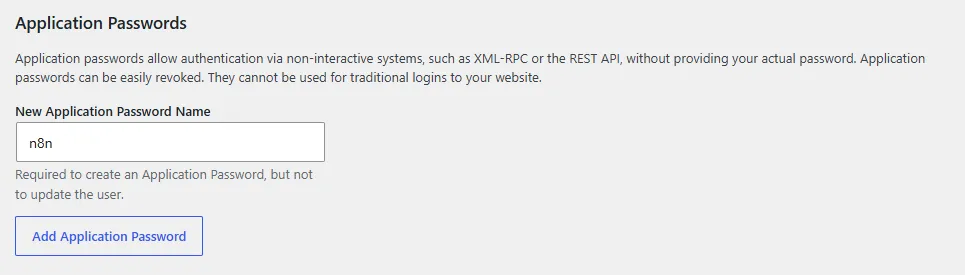
Create the application password on a self-hosted site
WordPress’s REST API handbook says that as of 5.6, WordPress ships with Application Passwords, generated from an Edit User page (Users, then Edit User), and that the credentials can be passed to REST requests served over https:// using Basic Auth. WordPress’s own Application Passwords integration guide adds that the feature is available by default on sites served over SSL/HTTPS. Read that carefully: a site without HTTPS won’t offer Application Passwords by default.
Create the password under a dedicated user with the Author or Editor role rather than your admin account, name it something like “n8n”, and copy it once. In the n8n credential, enter that username, the generated password and your site URL, including https://.
Now the toggle. Ignore SSL Issues makes the credential connect even if SSL certificate validation fails. It’s meant for broken or self-signed certificates on a test box. It does not make a plain HTTP site accept Application Passwords, and you should never leave it on for a production site. Fix the certificate instead.
Credential troubleshooting checklist
When the credential test fails or the node returns an authorization error, check these in order. They are things to verify, not guaranteed causes:
- The WordPress URL matches the real site address, including https:// and no stray path.
- The username belongs to the same user who created the application password. WordPress also accepts that user’s email address.
- The application password was copied in full. Its spaces don’t matter, because WordPress strips them before checking it.
- The site is served over HTTPS and the password was created on an Edit User page for that user.
- A security plugin or host firewall isn’t blocking REST API requests from your n8n server’s IP.
- The user has permission to create posts.
- Application Passwords haven’t been switched off. WordPress lets a site disable them with a filter, so a security plugin or custom code can turn them off.
If all seven check out, open the site’s /wp-json/ URL in a browser. If it doesn’t return JSON, the problem is the site, not n8n. If it does, find the authentication key in the response. WordPress’s integration guide says that when it’s empty, Application Passwords aren’t available, usually because the request isn’t over https:// or the feature was disabled.
Build the AI-to-WordPress workflow step by step
The workflow below runs once per article and ends with a draft waiting in WordPress. Build it in this order, testing each node before adding the next.
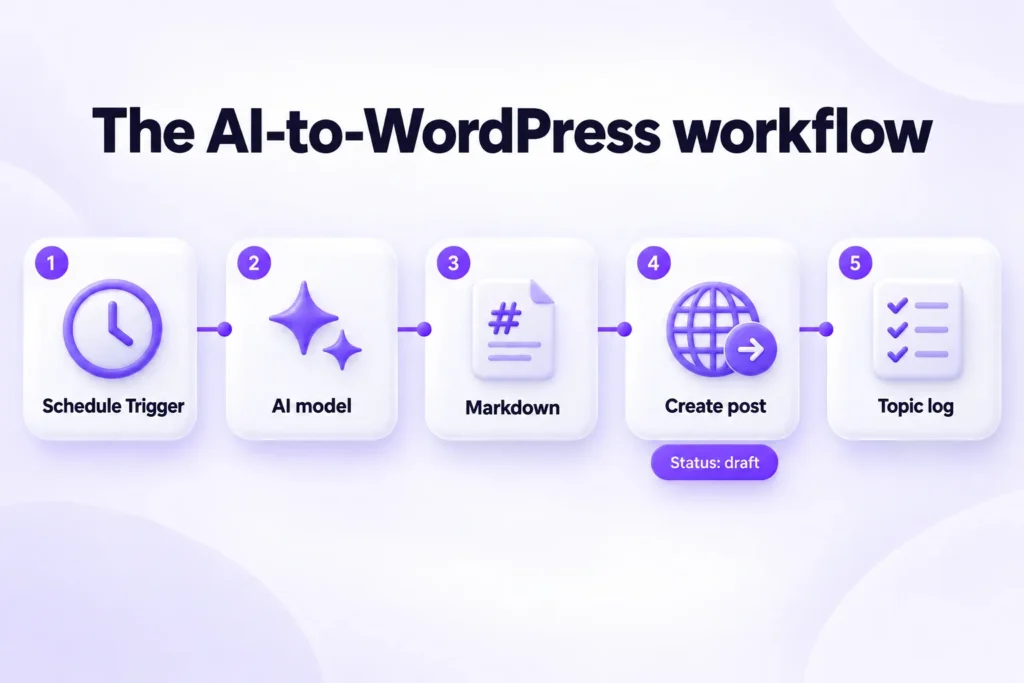
1. Trigger. Use a Schedule Trigger for a fixed cadence, or a Google Sheets node reading a topic list where a “status” column marks rows still to do. For a topic-driven setup, the Sheet is better: it gives you an editorial queue you can reorder.
2. AI model. Add an OpenAI, Anthropic or Google Gemini node, or the AI Agent node if you want it to call tools. Ask for structured output with separate fields: title, slug, meta_description, focus_keyword and body_markdown. Separate fields map cleanly to the next nodes. One blob of text forces you to parse it later.
3. Markdown node. Set the mode to Markdown to HTML. n8n’s Markdown node uses the Showdown parser and has a Tables Support option, off by default, which you should switch on if your articles contain comparison tables. Put the result in a destination key such as html. The node keeps the fields it receives and adds that key, so the title, slug and HTML reach the next node together.
4. WordPress node. Choose Post > Create. Map Title, Content and Slug with expressions such as {{ $json.title }}, {{ $json.html }} and {{ $json.slug }} (adjust the path if your AI node nests its output), set Status to draft, and pick categories and tags from the lists or pass their IDs. This version gets you a draft with text only. Section four turns it into a complete post.
5. Topic log. After creation, write the post ID or URL back to the Sheet row (or an n8n data table) and mark the topic done. Without this step, a retried run publishes the same topic twice.
Keep the prompt short and feed it real research
A long clever prompt doesn’t fix thin content. What separates a rank-ready draft from generic AI filler is input: sources the model has actually read, a clear reader, a specific angle. Pass in research notes or fetched source text from an HTTP Request or search node, and tell the model to use only those facts and to flag anything it can’t support. A bare “write 1,500 words about X” prompt produces the average of the internet, and that’s the kind of output Google’s helpful-content guidance warns against.
Be honest about the ceiling too. One AI node plus a Markdown node gives you a draft, not an edited article. Anything that needs fact-checking, original examples or first-hand experience (the E-E-A-T part) still needs a human, which is why the next sections lean so hard on drafts.
Add what the node leaves out: featured image, SEO fields, custom post types and block formatting
Each gap below has a cause and a fix. The first three share one tool: the WordPress REST API, called from an HTTP Request node.
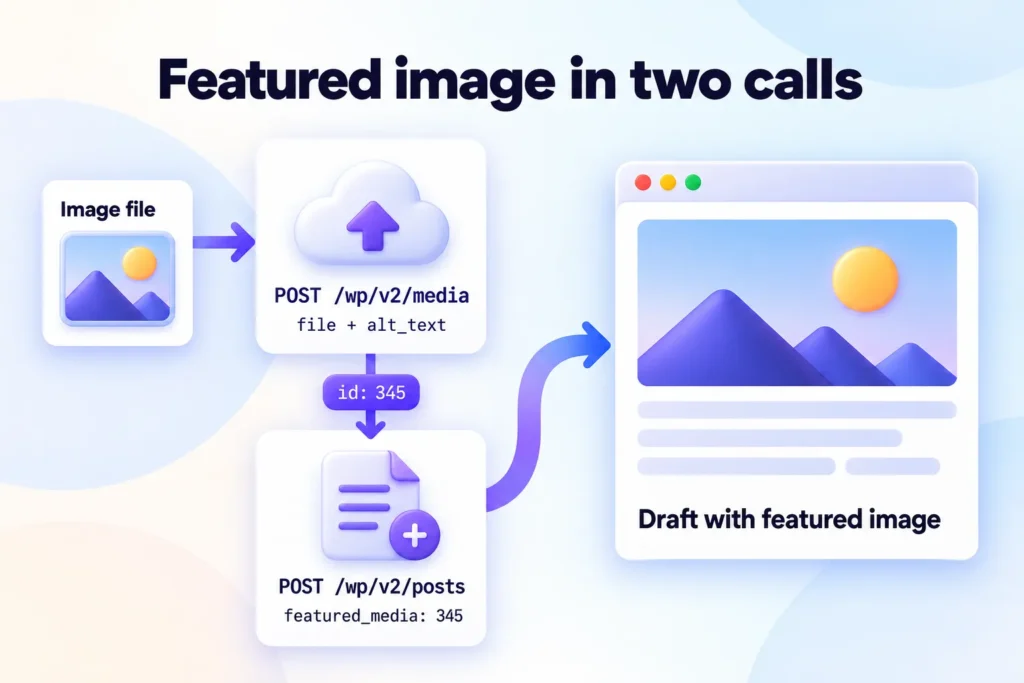
Featured image: upload it, then attach it
The WordPress node has no featured image field, but the REST API handles it in two calls. First, POST /wp-json/wp/v2/media uploads a file to the Media Library and the response carries the new item’s ID. Second, POST /wp-json/wp/v2/posts accepts featured_media, defined as the ID of the featured media for the post.
For the first call, add an HTTP Request node with method POST, URL https://your-site.com/wp-json/wp/v2/media and the same predefined WordPress credential. Turn on Send Body and choose Form-Data. Add a parameter of type n8n Binary File named file, with Input Data Field Name set to the binary field from the previous node (often data, from an image-generation step or a download). Then add a Form Data parameter named alt_text, so the image gets real alt text in the same call.
Those two names come from WordPress itself: its media endpoint reads the upload from a field called file and saves alt_text when you send it. Run the node once in a test workflow and confirm the response contains an id. That number is what you send as featured_media in the next call.
One HTTP Request node instead of the WordPress node
Configure the node like this: method POST, URL https://your-site.com/wp-json/wp/v2/posts, Authentication set to Predefined Credential Type, credential type WordPress, then select the same credential you made earlier. Send the body as JSON. Snippet (a) goes in the JSON body of that HTTP Request node:
{
  "title": "Your post title",
  "content": "<p>HTML from the Markdown node</p>",
  "status": "draft",
  "categories": [12],
  "featured_media": 345,
  "meta": {
    "rank_math_title": "SEO title",
    "rank_math_description": "Meta description",
    "rank_math_focus_keyword": "focus keyword"
  }
}
In n8n you’d replace the placeholder values with expressions pointing at earlier nodes. Three details matter. The number 12 is an example category ID; look up yours in Posts > Categories or via the REST API. The number 345 is the media ID returned by the earlier POST /wp/v2/media call. And the meta values only save once snippet (b) below is active on the site.
One trap when you swap the sample values for expressions: HTML is full of double quotes, and dropping it straight into the JSON breaks the body. Wrap text values in JSON.stringify() and leave out the surrounding quotes, as in "content": {{ JSON.stringify($json.html) }}. Add other post fields the same way, such as slug or date.
SEO fields: Rank Math, Yoast and other plugins
Here is the failure that wastes the most time. WordPress only accepts meta through the REST API for keys that are registered for it. register_post_meta with show_in_rest set to true exposes a key on the meta object and handles reading and writing. Unregistered keys are silently ignored, so your request can return success while every Rank Math field stays empty.
Snippet (b) goes in a small custom plugin or a code snippets plugin on your WordPress site, not in n8n:
add_action( 'init', function () {
    foreach ( array( 'rank_math_title', 'rank_math_description', 'rank_math_focus_keyword' ) as $key ) {
        register_post_meta( 'post', $key, array(
            'type'          => 'string',
            'single'        => true,
            'show_in_rest'  => true,
            'auth_callback' => function () {
                return current_user_can( 'edit_posts' );
            },
        ) );
    }
} );
Test it on a staging site first. A code error in a snippet can take a live site down, and you want to confirm the fields fill before pointing a workflow at production. The same pattern works for Yoast and other SEO plugins once you swap in their meta key names, which you’ll find in each plugin’s developer documentation. Don’t guess them: a wrong key fails silently, exactly like an unregistered one.
Custom post types
A wp/v2 route exists for a custom post type only when it was registered with 'show_in_rest' => true, and rest_base can rename the route. A type registered as “book” with rest_base set to “books” answers at /wp-json/wp/v2/books. If your CPT is REST-enabled, point the HTTP Request node at that route. If it isn’t, ask whoever maintains the site (or the plugin author) to enable it, because n8n can’t.
Block formatting
When HTML arrives without block markup, the block editor opens it in a Classic block. The Classic block’s toolbar has a Convert to blocks option that turns the content into blocks, and that’s your manual fix per post. n8n’s Markdown node outputs plain HTML, not block markup. WordPress stores blocks as HTML wrapped in comments that act as block delimiters, such as <!-- wp:paragraph -->, so getting native blocks straight from n8n means adding those delimiters yourself in a Code node and testing the result on a draft. If that’s more than you want to maintain, budget a Convert to blocks click in your review routine.
Two more things the node doesn’t handle: schema and internal links. Both need deliberate work, and the guides on adding schema to AI content and internal linking for AI content explain why internal links should point at URLs you’ve confirmed exist.
Publish safely with drafts, review and scheduling
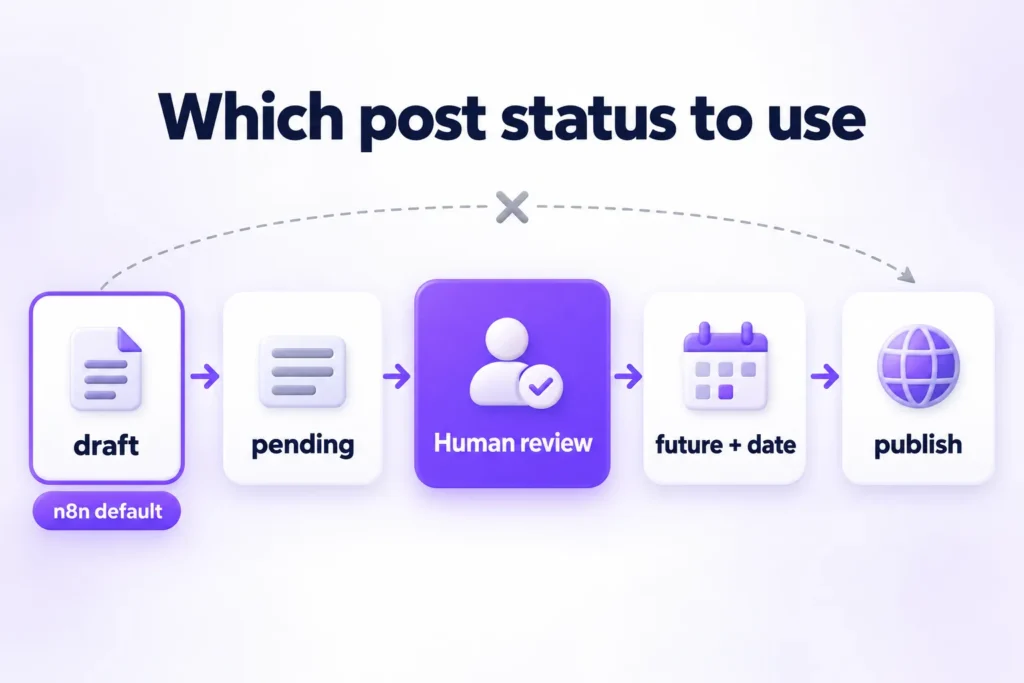
The node’s default status is draft, and you should keep it. Set status to pending if your team uses that stage, so an editor sees it in the queue. Use future with a date only for posts that a person has already reviewed and approved. Auto-publishing is technically a single dropdown change, which is exactly why it deserves resistance.
The risk is not theoretical. Google’s spam policies define scaled content abuse as many pages generated primarily to manipulate rankings rather than help users, and list using generative AI tools to generate many pages without adding value as an example. Google’s test is value to users, not whether a model wrote the first draft, as our look at whether Google penalizes AI content explains. A review step is how you show the value was added. For a deeper look at the line between automation and spam, read how to auto-publish AI content without becoming a spam blog.
Build the review into a repeatable routine. The editorial workflow guide covers the full system, and this checklist is the minimum for an n8n draft.
For scheduling, add a Date value in the post call with status future. The post then goes live at that time without n8n running again, since WordPress itself holds the scheduled post. Reviewed posts only.
What an n8n WordPress workflow costs
All n8n figures below are as of October 7, 2026, in euros, billed annually. I’m not converting currencies or quoting monthly-billing prices, because only the annual figures were verified. Check n8n’s pricing page before you buy.
| Plan | Price | Executions per month | Notes |
|---|---|---|---|
| Starter | 20€/month | 2,500 | 5 concurrent executions, 1,600 Assistant credits a month, free trial, no card |
| Pro | 50€/month | 10,000 | Up to 50 concurrent, up to 9,600 Assistant credits, free trial, no card |
| Business | 667€/month | 40,000 | Self-hosted only |
| Enterprise | On request | Custom | Contact sales |
| Community Edition | Free to self-host | n/a | You pay for the server; Sustainable Use License |
The metric that matters is the execution. n8n defines it as a single run of your entire workflow, regardless of how many steps it has or how much data it processes. A seven-node workflow and a forty-node workflow cost the same per run. That differs from tools that bill per step, and it changes the math for anyone chaining many nodes.
The arithmetic
One post a day is about 30 executions a month. That is 1.2% of Starter’s 2,500, which leaves roughly 83 times the headroom a daily-post workflow needs. Spread the flat 20€ across 30 posts and you get about 0.67€ of platform fee per post, if you run nothing else on the account.
The assumption is that the workflow runs once per article. A Schedule Trigger polling every few minutes, or separate workflows for the image and SEO steps, multiplies the count. And a workflow that loops over many topics in a single run still counts as one execution. So for a blogger, the execution allowance is rarely the limit. The flat fee, the AI tokens and above all your time are what you actually pay.
Self-hosting and licensing
The Community Edition is free to self-host, and you pay for the server and your maintenance time. Don’t call it open source, though. n8n uses the Sustainable Use License, which is based on the fair-code model and allows use only for your own internal business purposes or for non-commercial or personal use. Agencies building workflows for clients should read n8n’s License FAQs before assuming that is covered, or ask n8n directly.
AI cost and your time
Your AI provider bills tokens separately. A single-prompt workflow costs little per post. Research, writing and review as separate model calls multiply the number of calls, and so the cost. For one data point, the publisher’s own usage log averaged about $0.49 in model cost per article across 24 seven-agent productions on Claude Sonnet 5.5 at Anthropic’s list price in October 2026, as broken down in our AI SEO agent guide. That is a first-party log of a different pipeline, not an n8n benchmark, so use it only to see the order of magnitude.
Add build, test and maintenance time, which for most solo operators is the larger bill. For a fuller breakdown, see AI content cost per article.
n8n or a WordPress plugin pipeline: which fits
Disclosure first: Contentosapp Studio is made by the publisher of this site. What follows uses only the facts from its WordPress.org listing and the publisher’s product notes, and it states the plugin’s limits as plainly as n8n’s.
When n8n fits
n8n fits when you already run it, when triggers come from many apps (Sheets, Slack, a CRM, a form), or when you want custom logic: branching, approvals, posting to several sites, sending a Slack message when a draft lands. Its strength is that you control every step, and the cost of that control is that you build and maintain every step.
When a plugin pipeline fits
A plugin pipeline fits when you want research, writing, review, images, schema and SEO fields handled without building a workflow. Studio runs seven agents (Discoverer, Strategist, Researcher, Writer, Editorial Reviewer, Visual Designer, Social Media). It publishes to connected WordPress sites over the REST API using Application Passwords, sending the title, body, status, categories and featured image. On the site where it’s installed, it fills Rank Math’s focus keyword, SEO title and meta description. The Visual Designer prepares image prompts and Schema.org markup, and internal links point to real URLs. Each article goes out as a draft (the default), scheduled or published.
On cost, BYOK mode works with a Gemini, OpenAI or Claude key: no plugin fee and no Contentosapp article limit, while the provider bills usage. The managed ContentOS Auto option offers 3 free articles with no card, then Starter at $9/month for 5, Pro at $49/month for 30 and Studio at $129/month for 100, with annual billing giving two months free.
Studio’s limits
It has no n8n node and no webhook integration. It works with WordPress only. And it writes in English, Spanish and Brazilian Portuguese only. If your workflow starts in Slack or a CRM, or publishes outside WordPress, Studio isn’t the tool.
Decision table by situation
| Your situation | Likely fit |
|---|---|
| You already run n8n and want triggers from several apps | n8n |
| You need custom branching, approvals or multi-site distribution | n8n |
| You publish to non-WordPress destinations too | n8n |
| You want research, review, images, schema and SEO fields without building them | Plugin pipeline |
| You work in a single WordPress site and a supported language | Plugin pipeline |
| You enjoy building and maintaining workflows | n8n |
| You’d rather not maintain a snippet, an upload call and a log | Plugin pipeline |
Neither wins in general. They differ in who does the assembly work.
Frequently Asked Questions
Can n8n publish to WordPress automatically?
Yes. Set the WordPress node’s status to publish, or schedule with future and a date. Technically that works, but I’d keep status at draft or pending and review every post. Google’s spam policies target mass-produced pages that add no value for users.
How do I add a featured image to a WordPress post in n8n?
The WordPress node has no featured image field for posts. Upload the file with an HTTP Request node calling POST /wp-json/wp/v2/media as Form-Data, with the binary in a field named file and an alt_text field. Take the returned ID and send it as featured_media in the post call. Use the same WordPress credential in both nodes.
Why are my n8n WordPress credentials not working?
First check which path you’re on. n8n’s guide describes the WordPress.com steps, while self-hosted sites create the application password under Users > Edit User in wp-admin, and only over HTTPS by default. Then confirm the URL, the user and the full password, look for a security plugin blocking REST requests, and check the authentication key at your site’s /wp-json/ URL.
Can n8n fill Rank Math or Yoast fields?
Not with the WordPress node. Use an HTTP Request node to send meta in the post call, after registering the plugin’s meta keys for the REST API on your site (snippet b). Unregistered keys are ignored, so test on staging first and check the exact key names for your plugin.
Does the n8n WordPress node support custom post types?
No. The node covers posts, pages and users. A REST-enabled custom post type exposes its own route in the wp/v2 namespace, and you can target that route from an HTTP Request node. The type must be registered with show_in_rest set to true.
Is n8n free for WordPress automation?
The Community Edition is free to self-host under a fair-code license that limits use to internal business or non-commercial use, and you pay for the server. n8n Cloud starts at 20€/month billed annually as of October 7, 2026, and bills by execution, not by step.
Your next step
Build the draft-only workflow first: a trigger, an AI node returning separate fields, the Markdown node, and a WordPress Post > Create with status draft. Run it five times and open each result in the editor. You’ll see what is missing in your own setup, and you’ll fix it with evidence rather than guesses.
Only then add the media upload, the featured_media field and snippet (b) on a staging site. Last, decide whether a human really reviews every draft before it goes live. If you can’t answer yes, the workflow isn’t ready, however well it runs.
References
External sources
- WordPress | Nodes | n8n Docs — https://docs.n8n.io/integrations/builtin/app-nodes/n8n-nodes-base.wordpress/
- WordPress credentials | Nodes | n8n Docs — https://docs.n8n.io/integrations/builtin/credentials/wordpress/
- Authentication – REST API Handbook | Developer.WordPress.org — https://developer.wordpress.org/rest-api/using-the-rest-api/authentication/
- Markdown | Nodes | n8n Docs — https://docs.n8n.io/integrations/builtin/core-nodes/n8n-nodes-base.markdown/
- Media – REST API Handbook | Developer.WordPress.org — https://developer.wordpress.org/rest-api/reference/media/
- Posts – REST API Handbook | Developer.WordPress.org — https://developer.wordpress.org/rest-api/reference/posts/
- Modifying Responses – REST API Handbook | Developer.WordPress.org — https://developer.wordpress.org/rest-api/extending-the-rest-api/modifying-responses/
- Adding REST API Support For Custom Content Types – REST API Handbook | Developer.WordPress.org — https://developer.wordpress.org/rest-api/extending-the-rest-api/adding-rest-api-support-for-custom-content-types/
- Classic block – Documentation – WordPress.org — https://wordpress.org/documentation/article/classic-block/
- Spam Policies for Google Web Search | Google Search Central | Documentation | Google for Developers — https://developers.google.com/search/docs/essentials/spam-policies
- n8n Plans and Pricing – n8n.io — https://n8n.io/pricing/
- Community license | n8n Community license | n8n Docs — https://docs.n8n.io/n8n-community-license
- Contentosapp Studio – AI Content Writer & SEO (BYOK) – WordPress plugin | WordPress.org — https://wordpress.org/plugins/contentosapp-studio/
- PostDescription.ts – n8n WordPress node source (GitHub) — https://github.com/n8n-io/n8n/blob/master/packages/nodes-base/nodes/Wordpress/PostDescription.ts
- HTTP Request | Nodes | n8n Docs — https://docs.n8n.io/integrations/builtin/core-nodes/n8n-nodes-base.httprequest/
- Application Passwords: Integration Guide – Make WordPress Core — https://make.wordpress.org/core/2020/11/05/application-passwords-integration-guide/
- WP_REST_Attachments_Controller::upload_from_file() – Developer.WordPress.org — https://developer.wordpress.org/reference/classes/wp_rest_attachments_controller/upload_from_file/
- Data Flow and Data Format – Block Editor Handbook | Developer.WordPress.org — https://developer.wordpress.org/block-editor/explanations/architecture/data-flow/
Related content
- How to Automate WordPress Posts: The Four-Layer Framework (Scheduling, Importing, Publishing, and Creating) — Contentosapp
- How to Use Your Own AI API Key in WordPress: The Honest BYOK Guide — Contentosapp
- How to Auto-Publish AI Content to WordPress (Without Becoming a Spam Blog) — Contentosapp
- Editorial Workflow in WordPress: A Step-by-Step System From Idea to Publish — Contentosapp
- How to Add Schema to AI Content in WordPress (Without Marking Up What Readers Can’t See) — Contentosapp
- Internal Linking for AI Content: The Real-URL System That Ends Orphaned Posts and 404s — Contentosapp
- AI Content Cost Per Article: What You’re Actually Paying After Word Caps, Seat Fees, and Editing Time (2026) — Contentosapp
- Does Google Penalize AI Content? The Real Answer (With Data) in 2026 — Contentosapp